

Tracking links
A tracking link is the URL you give to publishers. Every click on that URL is logged in Integr8 with a unique transaction_id that is later matched to a conversion. This guide walks you through generating one and explains the parameters you can pass.
Before you begin
Section titled “Before you begin”- Create an offer with a redirect URL that includes the
{transaction_id}macro. - Add at least one publisher before generating a publisher-specific link.
Generate a tracking link
Section titled “Generate a tracking link”The simplest place to build a link is the Global Tracking page, which has a generator that works for any offer.
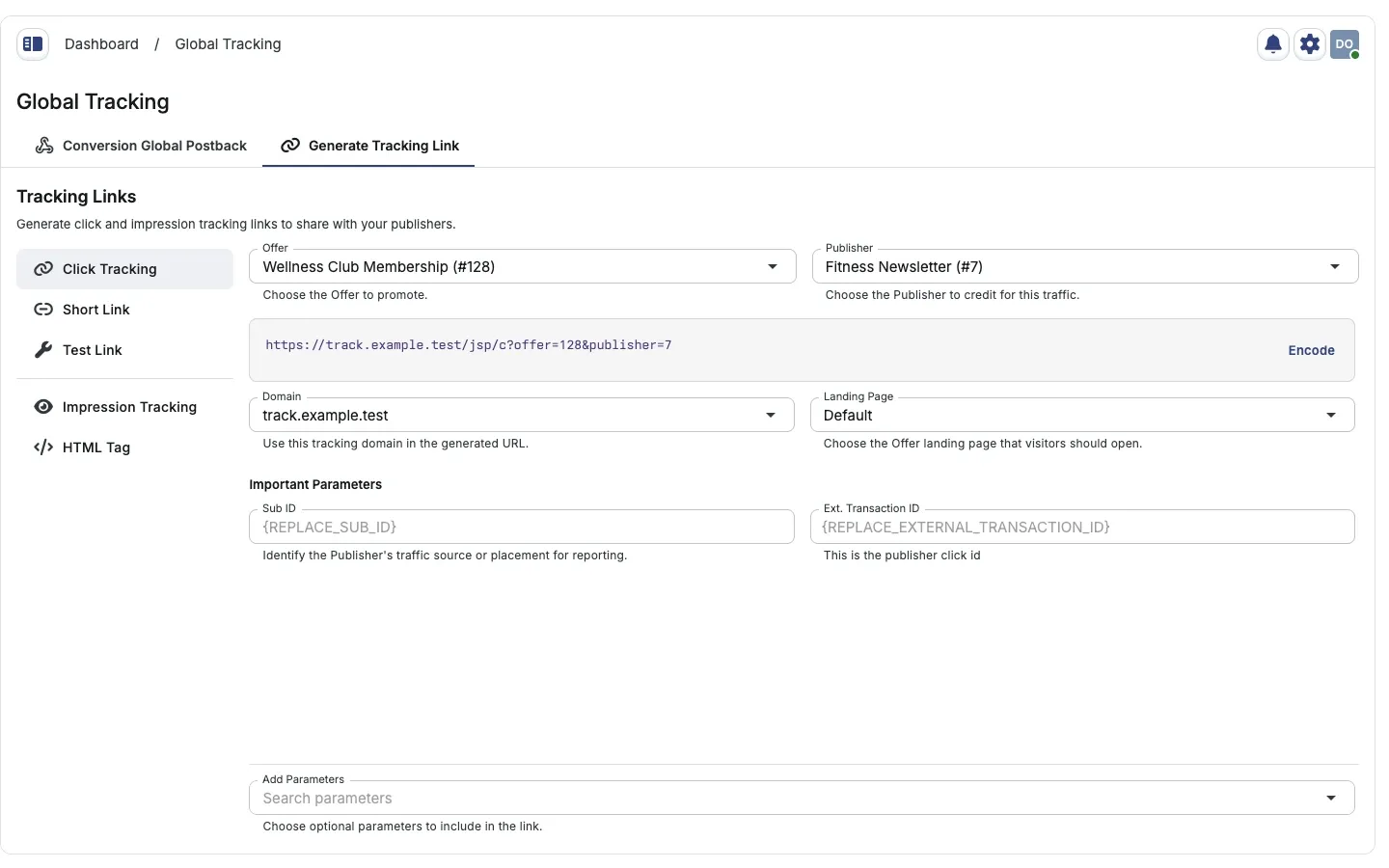
- Go to Offers > Global Tracking.
- Select the Generate Tracking Link page tab, then Click Tracking in the left navigation.
- Select the Offer and Publisher above the output. The link becomes available when that combination is valid.
- Review Domain, Landing Page, and Important Parameters, including Sub ID and Ext. Transaction ID (the publisher’s click ID).
- Use Add Parameters at the bottom to include optional fields. These appear in the scrollable fields area.
- Click the generated URL to copy it and share it with the publisher. Use Encode or Decode inside the output box when the receiving system requires that format.
Offer overview: Open the offer’s Overview tab and expand Generate Tracking Link. This is an inline accordion, not a separate page. Collapsing it retains your draft while you stay on the page.
Other shortcuts: The link icon on an Offers Management row, or the generator action for a landing page, opens a side drawer. The offer is fixed; select the Publisher next to it.
To pass the publisher’s own click ID back on the conversion, add &external_transaction_id=PUBLISHER_CLICK_ID to the link.
Link types
Section titled “Link types”The full-page generator uses a vertical sidebar. Compact embedded generators keep tab navigation.
| Mode | Use case |
|---|---|
| Click Tracking | Standard click tracking URL |
| Short Link | Compressed tracking URL |
| Test Link | Ignores caps and targeting. Use to verify setup before going live |
| Impression Tracking | Impression tracking URL |
| HTML Tag | HTML output for embedding tracking |
To register clicks from your own server instead of a link, see Server-side click.
Offer and Publisher selection stays above the output when you switch modes. Generate and review the output before sharing it; building a link does not visit the tracking URL.
Impression link parameters
Section titled “Impression link parameters”Impression links take the same offer, publisher, and sub_id parameters as click links. Add bundle_id to fill {bundle_id}. Other parameters, such as app_id, are stored as extra parameters and are available as {name} macros in the impression forwarding URL and in postbacks for conversions attributed to the impression, when the parameter is sent.
JavaScript / fingerprinting links
Section titled “JavaScript / fingerprinting links”Use JavaScript/fingerprinting links when fraud detection rules depend on browser signals: duplicate-click detection, bot scoring, and device anomaly checks.
Enable fingerprinting on an offer
Section titled “Enable fingerprinting on an offer”During create: In the Create Offer form, open the Tracking Link section and turn on Enable JavaScript/Fingerprinting Tracking.
On an existing offer: Open the offer, go to Settings, and enable the same option under tracking settings.
How it works
Section titled “How it works”When fingerprinting is enabled, generated links use the /jsp path instead of the root path:
- A small script runs in the browser.
- The script collects environment signals: user agent, screen resolution, timezone, installed fonts, canvas hash, and WebGL data.
- The fingerprint is hashed and attached to the click record.
- The visitor is redirected to the offer landing page as normal.
Example:
https://track.yourdomain.com/jsp?offer=42&publisher=7&sub_id=newsletter&external_transaction_id=CLICK_ID_HEREStandard links without /jsp do not collect fingerprints. Fingerprint-based fraud rules only apply to clicks that arrive through this link type. See Fraud detection.
Requirements and limitations
Section titled “Requirements and limitations”- JavaScript must be enabled in the visitor’s browser.
- Adds a small delay (typically under 50 ms) before redirect.
- No changes needed on the advertiser or publisher side. The script runs on the redirect.
Server-side click
Section titled “Server-side click”A server-side click registers a click from your own server instead of sending the visitor through a tracking link. Your server calls the Integr8 click endpoint and gets back JSON with the click’s transaction_id and whether the click was approved or rejected. Use it instead of a redirect or JavaScript link for no-redirect flows, apps, and server-to-server integrations.
Before you begin
Section titled “Before you begin”- Create an offer with a redirect URL that includes the
{transaction_id}macro. - Add the publisher that the click belongs to, and note the offer ID and publisher ID.
- Find your Integration ID: go to Offers > Global Settings and search the page for “Integration ID”. The integration is identified by the host, so the request needs no API key or other credentials.
How it works
Section titled “How it works”- Your server sends a
GETrequest to the click endpoint with the offer ID, publisher ID, and the visitor’s details. - Integr8 records the click and returns a
transaction_idwith the click status. - You pass the
transaction_idto the landing page, or requestfields=redirect_urland use the returnedredirect_url, which already has the{transaction_id}macro replaced. - The advertiser returns the
transaction_idon the conversion postback. - Integr8 matches the postback to the click and records the conversion.
Make a server-side click request
Section titled “Make a server-side click request”Send a GET request to the API endpoint on your integration’s gateway host, replacing {your-integration-id} with your Integration ID. It returns compact JSON by default:
https://{your-integration-id}.gateway.go2link.co/api/click?offer=42&publisher=7You can also register the click on your existing tracking link domain, including a custom tracking domain, by adding no_redirect=true to the tracking link. The parameters and the JSON response are the same:
https://{your-integration-id}.gateway.go2link.co/c?offer=42&publisher=7&no_redirect=truehttps://track.yourdomain.com/?offer=42&publisher=7&no_redirect=trueno_redirect=true is redundant on /api/click. /api/click is not available on a custom tracking domain: use the root path with no_redirect=true instead.
| Parameter | Required | Description |
|---|---|---|
offer |
Yes | Offer ID (positive integer) |
publisher |
Yes | Publisher ID (positive integer) |
click_ip |
Recommended | Visitor IP address |
user_agent |
Recommended | Visitor User-Agent |
landing_page |
No | Landing page ID. Uses the offer default if omitted. An invalid or inactive landing page returns 400 |
sub_id, sub_id_2 to sub_id_6 |
No | Sub-source identifiers |
external_transaction_id |
No | Publisher’s own click ID |
referer |
No | Visitor referrer URL |
bundle_id |
No | App bundle ID. Fills {bundle_id} |
fields |
No | Comma-separated optional response fields, for example redirect_url |
Other query parameters, including app_id and app_version, are stored as extra parameters with the click and fill {name} macros in the returned redirect_url and in postbacks when the parameter is sent. See the Click API reference for the full parameter list.
curl --get 'https://{your-integration-id}.gateway.go2link.co/api/click' \ --data-urlencode 'offer=42' \ --data-urlencode 'publisher=7' \ --data-urlencode 'sub_id=campaign-a' \ --data-urlencode 'click_ip=203.0.113.10' \ --data-urlencode 'user_agent=Mozilla/5.0 (visitor browser)' \ --data-urlencode 'fields=redirect_url'An approved click returns:
{ "status": "approved", "transaction_id": "01HMW6B77WJB7MBXM2SV6C1YJE_42_7", "redirect_url": "https://advertiser.example.com/landing?tx=01HMW6B77WJB7MBXM2SV6C1YJE_42_7"}A rejected click returns status: rejected with a reason, and is_blocked: true when the offer blocks rejected clicks. Invalid requests return HTTP 400 with status, reason, and error_type (for example ClientInvalidParameterFormat when offer or publisher is missing or not a positive integer).
Send browser data (optional)
Section titled “Send browser data (optional)”Browser data includes browser-related timing information that helps identify possible VPN users. It is useful if VPN detection and blocking matters to you. It is optional; without it the click is still tracked.
Collect the data in the visitor’s browser, send it to your backend, and forward it promptly as js_check_data. A long delay between collection and the click request can reduce its usefulness.
<script src="https://cdn.24metrics.com/lib/index.js"></script><script>(async () => {  const body = new URLSearchParams();
  try {    // Base64-encoded JSON, or null when collection failed    const jsData = await ASP.get24metricsData();    if (jsData) body.append('js_check_data', jsData);  } catch (error) {    // Browser data is optional; continue without it.  }
  // Always send the click, with or without browser data.  await fetch('/your-backend/click', { method: 'POST', body });})();</script>
On your backend, pass the value through unchanged and URL-encode it. Do not base64-encode it again.
curl --get 'https://{your-integration-id}.gateway.go2link.co/api/click' \ --data-urlencode 'offer=42' \ --data-urlencode 'publisher=7' \ --data-urlencode 'click_ip=203.0.113.10' \ --data-urlencode 'user_agent=Mozilla/5.0 (visitor browser)' \ --data-urlencode "js_check_data=$JS_DATA"A value that can’t be decoded is ignored without an error, and the click is still tracked without browser data, so send the SDK value unchanged. If the decoded data has a malformed js_start_time, the request is rejected with ClientInvalidParameterFormat. When you send js_check_data, its unique_user_id and fingerprint replace any separately sent unique_user_id and fingerprint parameters. Keep the offer, publisher, and other backend-only values on your server.
If your site uses a Content Security Policy, allow script-src https://cdn.24metrics.com and connect-src https://gateway.clickshield.24metrics.com.
Requirements and limitations
Section titled “Requirements and limitations”/api/clickis available only on the gateway host. On a custom tracking domain, use the root path withno_redirect=true.- Forward the visitor’s IP address as
click_ipand the visitor’s User-Agent asuser_agent. If you omit them, Integr8 records and checks your server’s IP address and User-Agent instead. - Browser fingerprint signals are not collected on server-side clicks. To add them, see Send browser data.
- A rejected click (for example from fraud filters, capping, or targeting) still returns HTTP
200. Check thestatusfield; do not treat HTTP200as approval. redirect_urlis returned only when you list it infields. A rejected click’sredirect_urlis usually a preview or fallback URL (or empty), but in monitoring mode it can be the approved landing page.
Verify the click
Section titled “Verify the click”- Send a request with
sub_id=TestLink. It registers a test click without fraud filtering or capping and returns the offer’s approved landing page URL. - Go to Reports > Click Report and confirm the click appears with the expected Offer, Publisher, and Sub ID. See Click reports.
- Pass the returned
transaction_idthrough to the conversion postback and confirm the conversion matches. See Conversion tracking.
Tracking link parameters
Section titled “Tracking link parameters”| Parameter | Description |
|---|---|
offer |
Offer ID |
publisher |
Publisher ID |
sub_id |
Sub-publisher identifier for source attribution |
external_transaction_id |
Publisher’s own click ID, returned in the conversion postback |
lp |
Landing page ID. Optional. Uses the offer default if omitted. |
bundle_id |
App bundle ID. Fills {bundle_id} |
app_id, app_version |
App ID and version. Stored as extra parameters, available as {app_id} and {app_version} |
Any other query parameter is stored with the click as an extra parameter. When it is sent, it is available as a {name} macro in the offer redirect URL and postback URLs. For example, &campaign=spring fills {campaign}. If the parameter is not sent, {app_id}, {app_version}, and {bundle_id} are replaced with an empty value. Other extra-parameter macros stay in the URL as written, for example {campaign}. To pass app_id to the landing page, add &app_id={app_id} to the offer redirect URL; “Forward Extra Parameters” does not append it. Parameters Integr8 reads itself (offer, publisher, sub_id, click_time, device_id, and others) are not stored as extra parameters.
Example
Section titled “Example”https://track.yourdomain.com/?offer=42&publisher=7&sub_id=newsletter&external_transaction_id=CLICK_ID_HERENext steps
Section titled “Next steps”- Configure conversion tracking so postbacks match clicks to conversions.
- Register clicks from your server when visitors cannot be redirected through a link.
- Use a custom tracking domain instead of the default Integr8 domain.