

Retargeting
Retargeting lets your advertisers keep reaching people who visited their site. You connect a subdomain you own, then add the advertiser’s pixels (Meta, Google, TikTok, and others) as tags on an offer. The advertiser installs one embed per offer, and you manage the tags from Integr8 from then on.
How retargeting works
Section titled “How retargeting works”Each offer has one embed, a single <script> line the advertiser pastes on every page of their site. When a visitor loads a page, the embed loads every active tag on that offer, and each tag runs the advertiser’s pixel. The pixel reports the visit to its ad platform, which adds the visitor to the advertiser’s audience so they can be shown ads later.
The embed and the tags are served from a subdomain you own, for example rt.yourdomain.com. Requests to your own domain are less likely to be blocked than a shared tracking domain, and your customers never see Integr8 in the page source.
Because the embed loads whatever tags are active, you can add, change, pause, or remove pixels in Integr8 without touching the advertiser’s site again.
Before you begin
Section titled “Before you begin”- Have access to the DNS settings for the parent domain.
- Pick the subdomain you want to use, for example
rt.yourdomain.com. Root domains such asyourdomain.comare not supported. - Get the pixel code from the advertiser. It must be
<script>tags, as provided by the ad platform.
Add a retargeting domain
Section titled “Add a retargeting domain”Retargeting domains live on the Retargeting Domains tab of Global Settings.
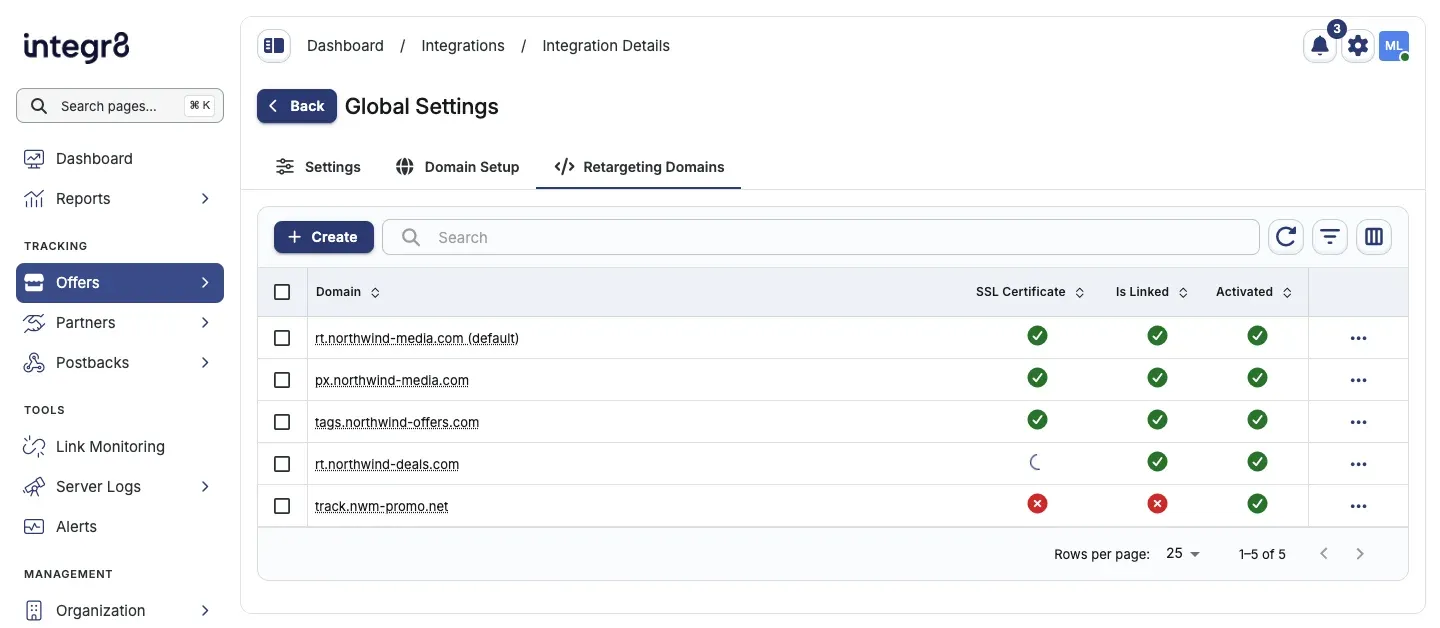
- Go to Offers > Global Settings and open the Retargeting Domains tab.
- Click Create.
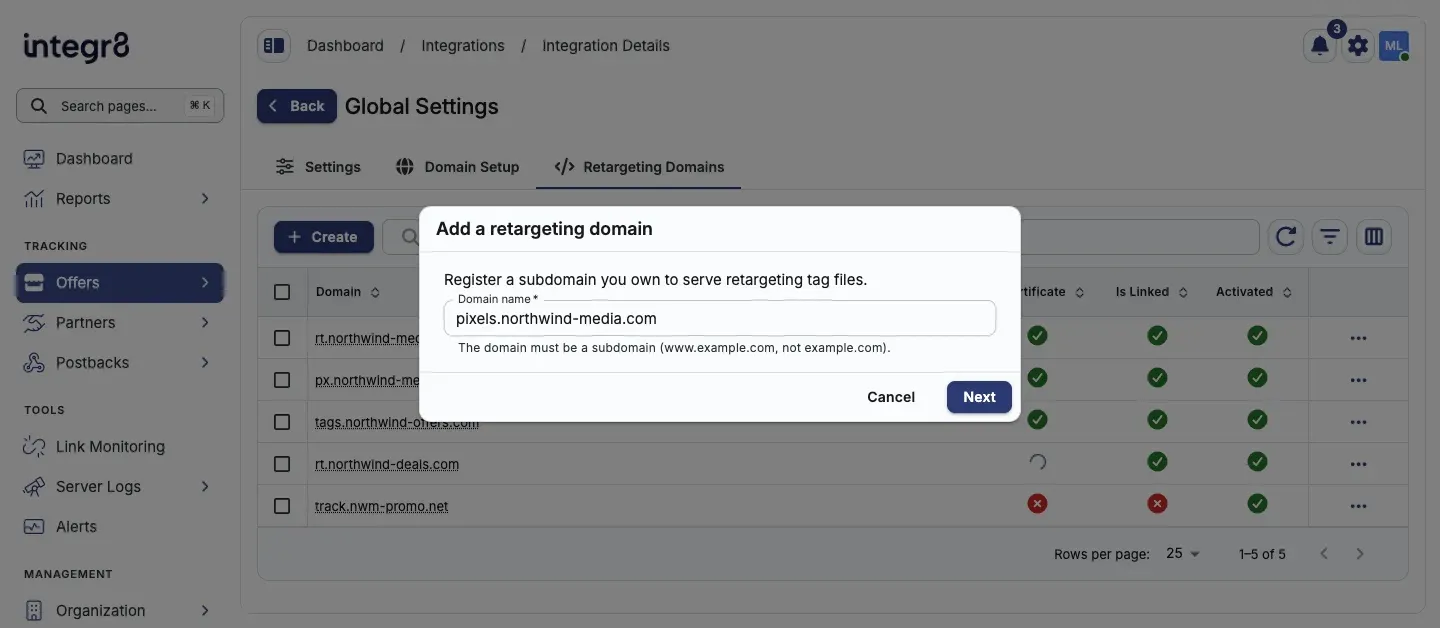
- In the Add a retargeting domain dialog, enter your subdomain in Domain name, for example
rt.yourdomain.com, then click Next. - Integr8 shows the
CNAMErecord your DNS provider needs. Keep the Connect Your Domain dialog open while you update your DNS settings. - Add the
CNAMErecord to your DNS provider. Copy the Name and Value directly from the dialog. - Integr8 checks your DNS automatically every 20 seconds. As soon as the record is verified, it creates the domain and the dialog changes to We’re connecting your domain.
- Click Done.
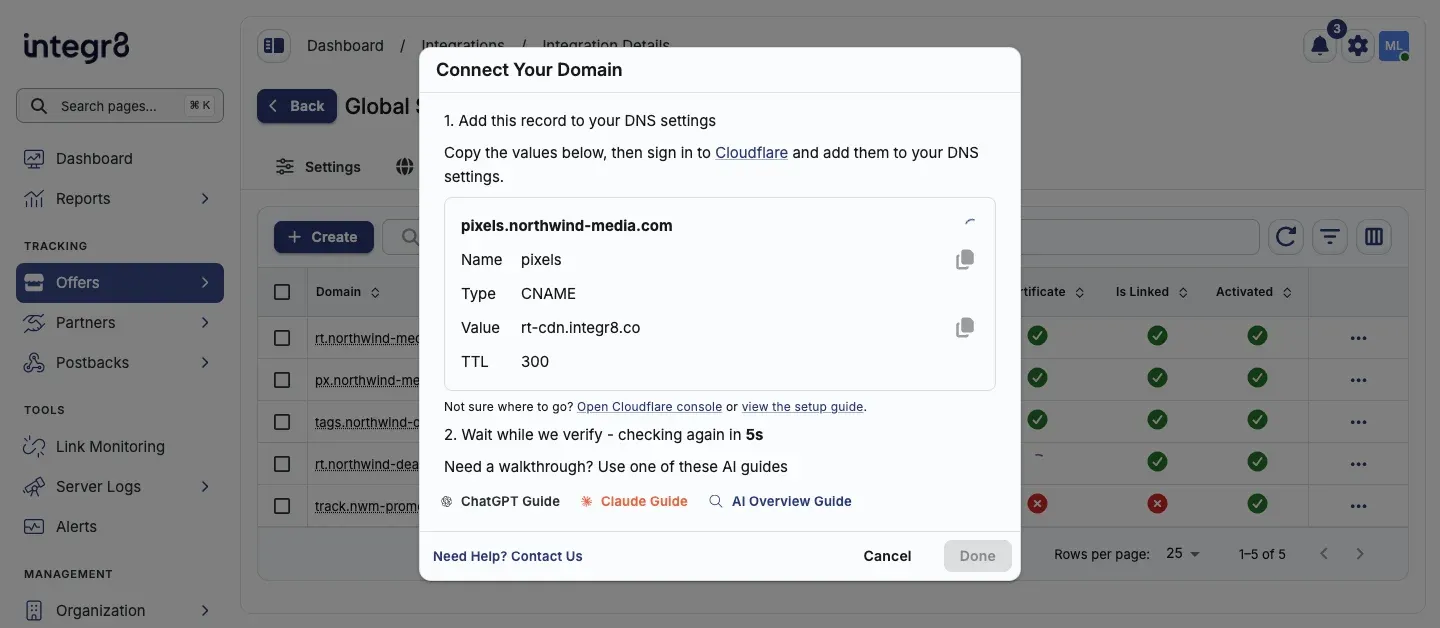
Integr8 only creates the domain once its CNAME points to the right place. If you click Cancel before the record is verified, nothing is created.
After the record is verified, Integr8 links the domain and issues its SSL certificate. This usually takes a few minutes. You can close the dialog in the meantime.
Domain status
Section titled “Domain status”The Retargeting Domains tab shows where each domain is in the setup.
| Column | What it means |
|---|---|
| SSL Certificate | A check means the certificate is issued. A spinner means it is still being issued. A cross means it cannot be issued because the CNAME check failed. |
| Is Linked | A check means the CNAME is verified and the domain is linked. A spinner means the first check has not run yet. A cross means the CNAME is missing or points somewhere else. |
| Activated | Whether the domain is available to pick for retargeting embeds. |
A domain is ready to serve tags once SSL Certificate and Is Linked both show a check.
Manage domains
Section titled “Manage domains”Click a domain name to open its dialog. If the domain is still being set up, the dialog shows the CNAME record and keeps checking your DNS. Once the domain is connected, the dialog shows Domain is connected with two settings:
- Set as Default makes this the domain offers use for their embed unless you pick another one. Only connected, active domains can be set as the default.
- Activated controls whether the domain shows up in the list of domains for retargeting embeds.
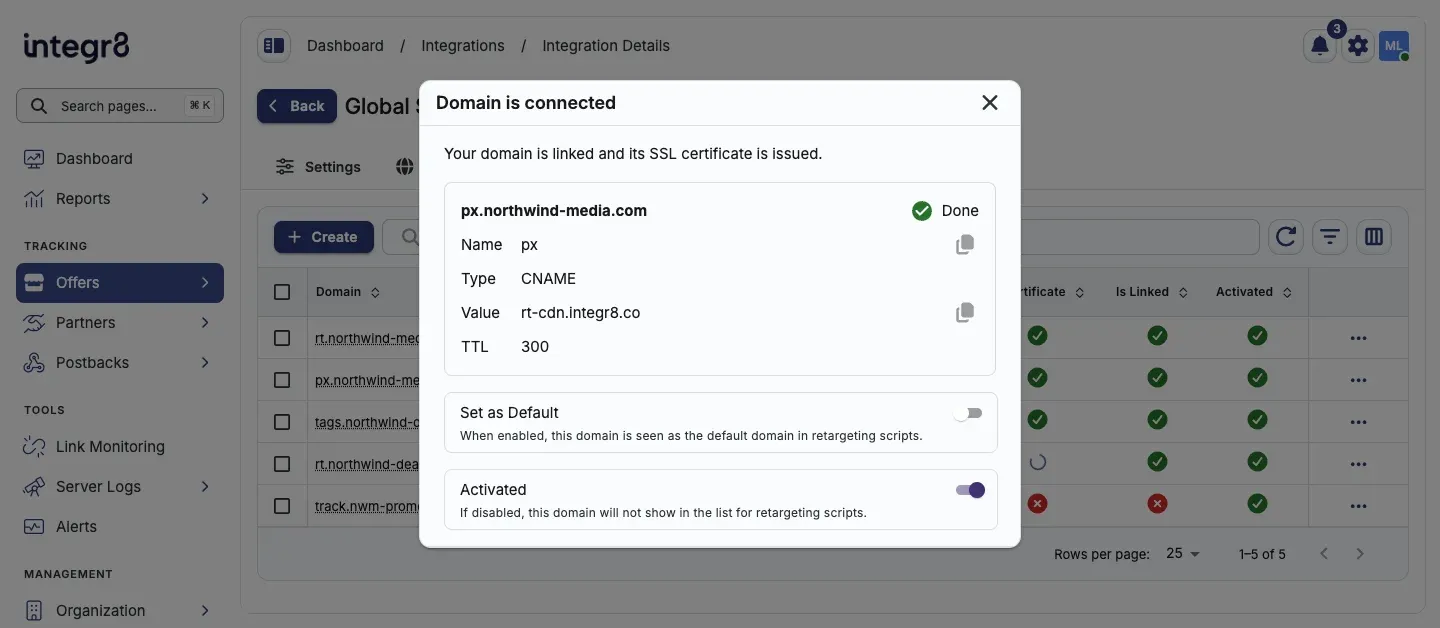
The actions menu on each row has the same options plus delete:
| Action | What it does |
|---|---|
| Set as default | Makes this the default retargeting domain |
| Activate / Deactivate | Shows or hides the domain in the list of domains for retargeting embeds |
| Delete | Permanently removes the domain. Cannot be undone |
If an advertiser’s site already uses an embed with this domain, replace that embed before you deactivate or delete the domain.
Install the embed on the advertiser’s site
Section titled “Install the embed on the advertiser’s site”Each offer’s embed is in the Retargeting section of the offer’s Overview tab.
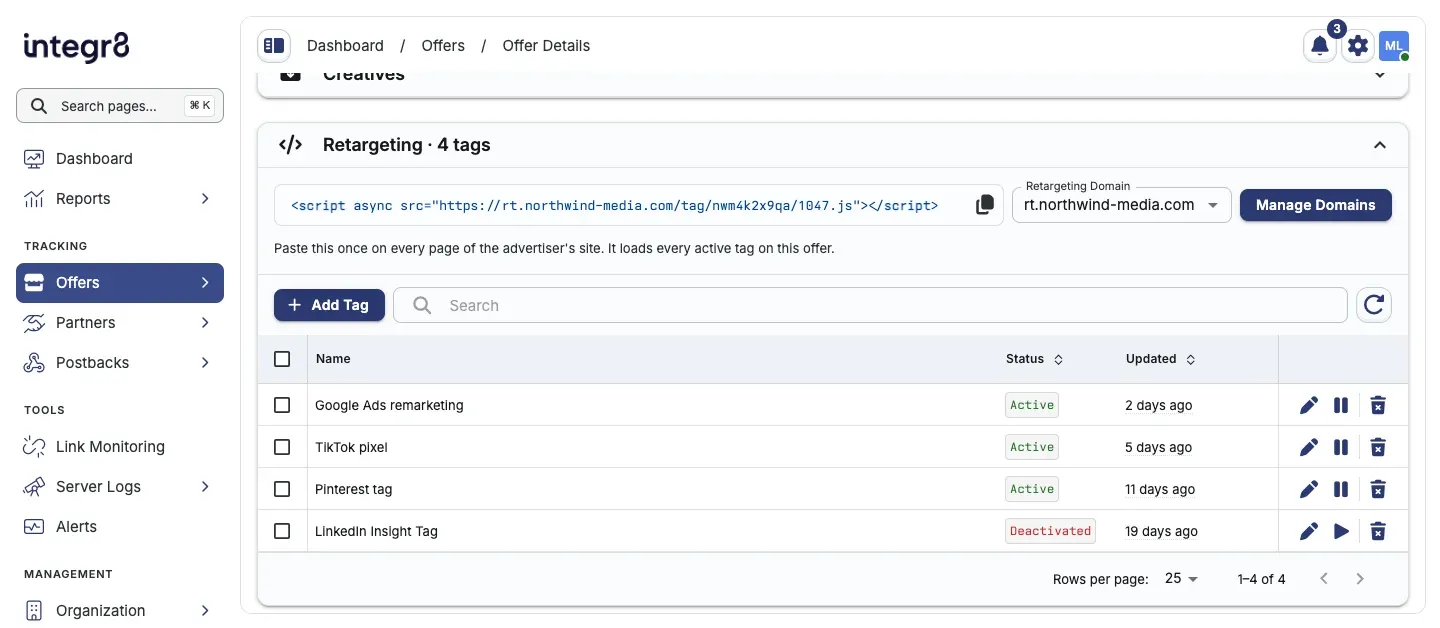
- Go to Offers > Offers Management and open the offer.
- On the Overview tab, expand the Retargeting section.
- In Retargeting Domain, pick the domain the embed should use. It starts on your default domain once that domain is connected. Default uses the shared Integr8 retargeting domain.
- Click the embed code to copy it.
- Send the embed to the advertiser and ask them to paste it once on every page of their site.
Click Manage Domains to open the Retargeting Domains tab in a new browser tab.
Add retargeting tags
Section titled “Add retargeting tags”- In the offer’s Retargeting section, click + Add Tag.
- Enter a Name that tells you which pixel this is, for example
Meta pixel. - Paste the advertiser’s pixel code into the code editor.
- Check the status below the editor, then click Save.
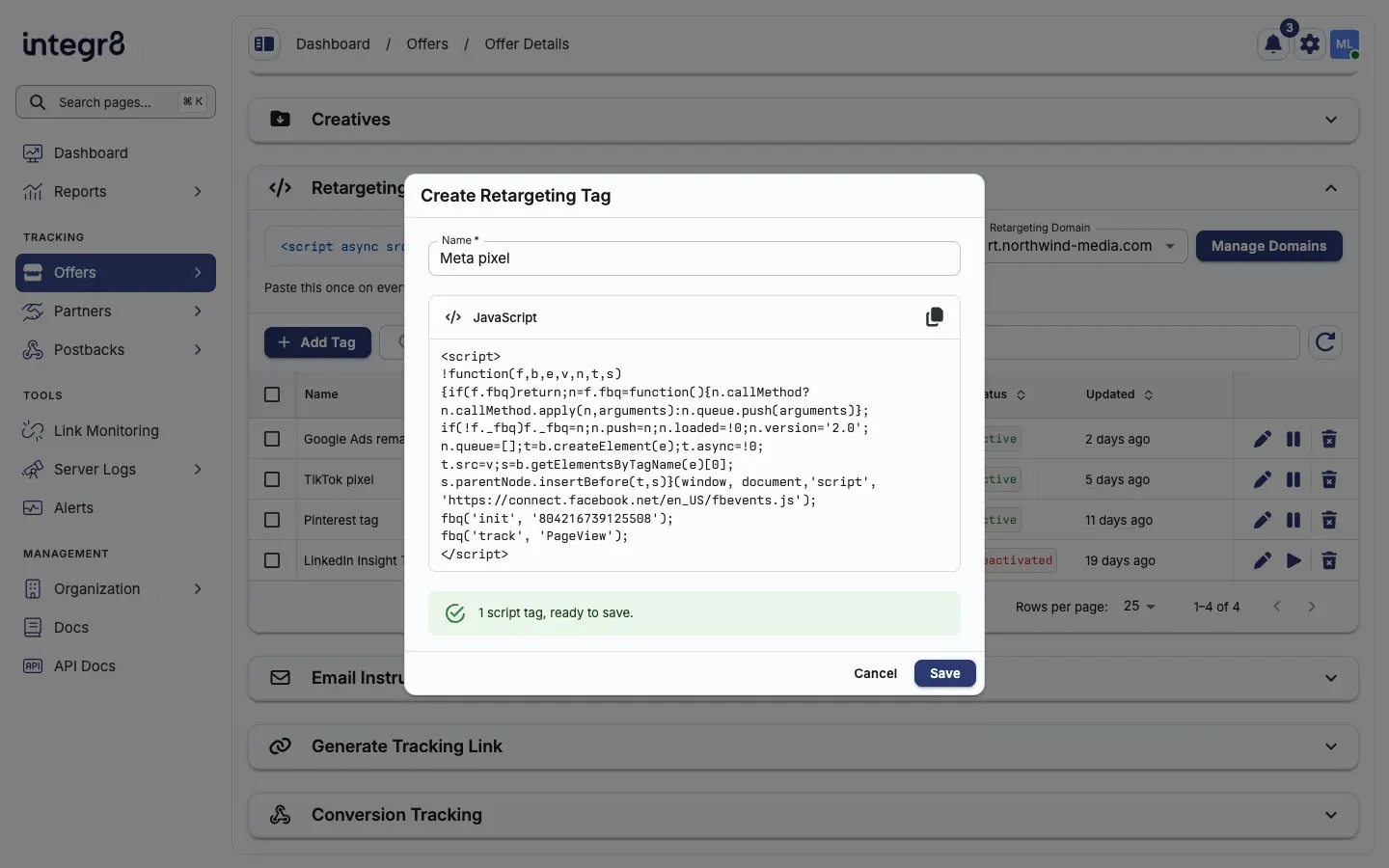
The tag starts running on the advertiser’s site as soon as it is saved. Use the row actions to Edit, Pause, Resume, or Delete a tag. Changes usually reach the advertiser’s site within a few minutes.
Accepted tag code
Section titled “Accepted tag code”Integr8 checks the code before you can save it.
| Rule | Message you see |
|---|---|
The code needs at least one <script> tag |
Tag code must contain at least one <script> tag. |
Every <script> tag needs its closing </script> |
A <script> tag is missing its closing </script>. |
Only <script> tags are allowed, no other HTML |
Tag code may only contain <script> tags. |
A tag can have at most 10 <script> tags |
Tag code contains more than 10 <script> tags. |
| Inline JavaScript must be valid | JavaScript error on line <n>, with the reason |
Scripts that load a file with src, such as an ad platform’s library, are accepted as they are.
If the code uses a name it never defines, for example a function the advertiser’s site is expected to provide, you see a warning instead of an error. You can still save. The tag only works if the advertiser’s page provides that name, otherwise it throws an error when it runs. Common pixel names such as fbq, gtag, and ttq do not trigger the warning.
Troubleshooting
Section titled “Troubleshooting”- The record is not verifying. DNS changes can take a few minutes to show up, sometimes longer. Keep the dialog open or come back later; Integr8 keeps checking. Make sure you added a
CNAMErecord, not anArecord. - Your DNS provider flattens the record. Some providers turn a
CNAMEon a root domain into address records, which Integr8 cannot verify. Use a subdomain. - A tag change is not showing yet. Changes usually take a few minutes to reach the advertiser’s site.
Next steps
Section titled “Next steps”- Set up a custom tracking domain for your tracking links.
- Create an offer to add retargeting tags to.