

Cross-event deduplication
Some advertisers send two events for one sale, for example one from their app and one from their billing server. Cross-event deduplication pairs those two events on an offer. When both arrive for the same click within the window you set, Integr8 processes the primary event and blocks the secondary, so you record, pay, and post back the sale once.
Before you begin
Section titled “Before you begin”- The offer belongs to an Integr8 Attribution integration and both events exist on it. See Revenue and payouts.
- Both events are active, and neither has Allow Multiple Events or Manually Accept Events turned on.
- Your plan includes cross-event deduplication. Without it you can still run the preview to see what a rule would block. Contact support to upgrade.
How it works
Section titled “How it works”A rule names a primary event, a secondary event, and a window of 1 to 300 seconds. Integr8 makes one decision per click transaction on the offer:
| What arrives | Result |
|---|---|
| Both events, within the window of each other (either order) | The primary is processed. The secondary is blocked: no conversion, no payout, and no postback, not even a rejected conversion. |
| Only one of the two events | Integr8 holds it until the window ends, then processes it normally. |
| The second event after the window ended | It is processed normally. The first event’s result is never reversed. |
Integr8 compares the times it received each request, not worker processing time and not a conversion time the advertiser sends. The window is measured from the first event Integr8 accepted, with no extra allowance for transport or processing delay.
The window delays single events
Section titled “The window delays single events”The window is the minimum time Integr8 waits for the counterpart, not a delivery deadline. An event whose counterpart never arrives is processed at the earliest when the window ends, and normal queue and processing time comes on top. Its conversion and postback are delayed by at least the window, not lost. Pick the shortest window that catches your duplicates; the preview recommends one.
What a rule does not cover
Section titled “What a rule does not cover”The rule applies only to offer-event attribution requests that reference an Integr8 click through its transaction_id. These requests are processed without deduplication:
- Clickless conversions and events.
- Requests that identify the click by an external platform transaction ID instead of the Integr8
transaction_id. - Requests for an event whose settings changed to Allow Multiple Events or Manually Accept Events. Server Logs show Not deduplicated for these.
A secondary event that Integr8 received within the window but that reached the deduplication step after the window had already ended is processed normally and counted as missed near the window edge. Integr8 does not block events retroactively, so the catch rate can be below 100%.
Open cross-event deduplication
Section titled “Open cross-event deduplication”- Go to Offers > Offers Management and open the offer.
- Select the Revenue & Payout tab.
- Select Cross-event deduplication next to Events.
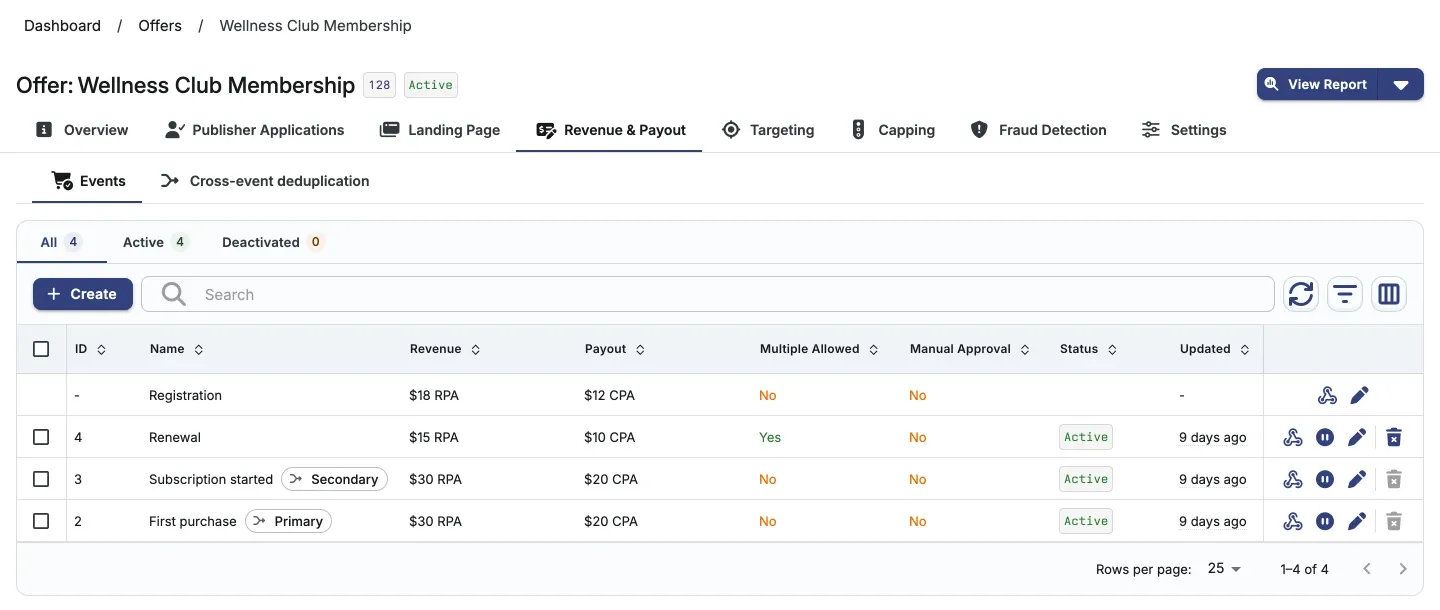
On the Events list, the two events in the rule show a Primary or Secondary chip next to their name. Hover the chip to see the paired event and window.
Set up a rule
Section titled “Set up a rule”- Under Deduplication rule, select the Primary event. This is the event Integr8 keeps.
- Select the Secondary event. This is the event Integr8 blocks when both arrive. Use the swap button to switch the two.
- Click Preview rule on the last 30 days. The preview replays your recorded conversions for this pair. Nothing is saved.
- Check the Window field. Integr8 preselects the recommended window from the preview. You can pick a shorter standard window; longer windows are not offered because they would only add delay.
- Click Set up event deduplication.
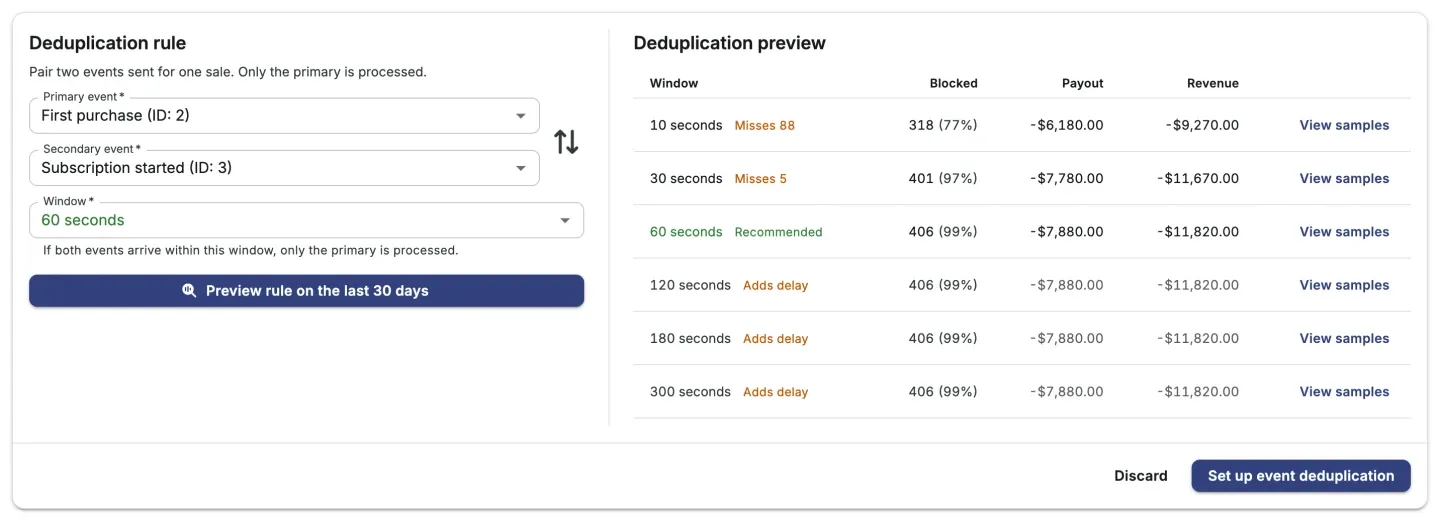
The preview result decides what you can save:
- If the preview finds duplicates, the shortest window that blocks the most of them is marked (Recommended).
- If no transaction had both events in the last 30 days, Integr8 uses the window of an earlier rule for the same pair when one exists, otherwise the default of 60 seconds.
- If transactions had both events but none would be blocked by any window, the page shows No duplicates found for this pair in the last 30 days. Try a different pair. and the rule cannot be saved.
Events that allow multiple events or need manual approval cannot be selected. Inactive and archived events can be previewed but not saved; a warning names the event and what to change on the Events tab.
Edit or remove a rule
Section titled “Edit or remove a rule”- On Cross-event deduplication, change the events or the Window.
- Click Save changes, or Discard to restore the saved rule.
To turn deduplication off, click Remove deduplication rule and confirm. The card footer shows who last changed the rule and when.
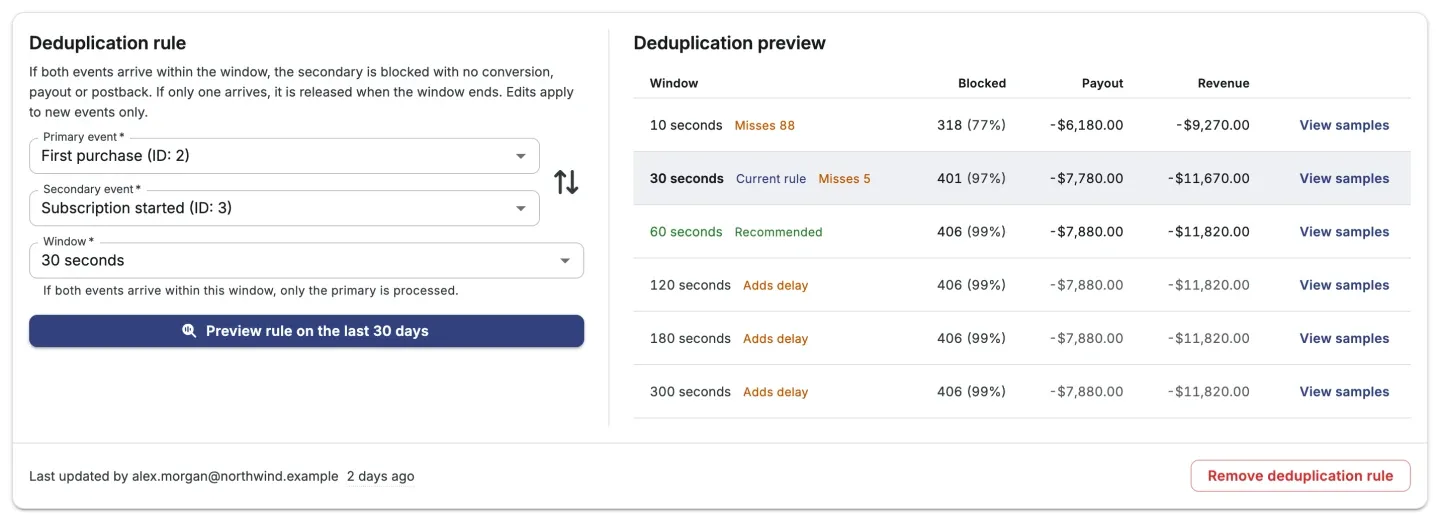
Edits and removal apply to new click transactions only:
- A transaction that is already being evaluated keeps the rule it started with. After a removal, an event that is waiting is still processed when its window ends, and its counterpart is blocked only if it arrives before then.
- Enabling a rule is not retroactive. Conversions recorded before the rule existed are not changed.
- A change reaches tracking shortly after you save, not instantly.
While a rule uses an event, that event cannot be deleted and cannot be switched to Allow Multiple Events or Manually Accept Events. Change or remove the rule first.
If someone else changed the rule while you were editing, Integr8 shows This rule was changed by someone else. Reload and try again. Click Reload and redo your change.
Read the preview
Section titled “Read the preview”The preview replays the selected events and window on the offer’s recorded conversions from the last 30 days. Each row is one window:
| Column | Description |
|---|---|
| Window | The window length. Tags show Current rule, Recommended, Misses N (blocks fewer duplicates than the recommended window), or Adds delay (blocks no more duplicates but holds single events longer) |
| Blocked | Duplicates the window would block, and their share of transactions that had both events |
| Payout | Payout of the blocked secondary events that were not already rejected by fraud or attribution filters |
| Revenue | Revenue of the same secondary events |
Click View samples on a row to see up to 10 recent pairs for that window, with both receipt times, the gap, and a View server logs link while the logs are still available.
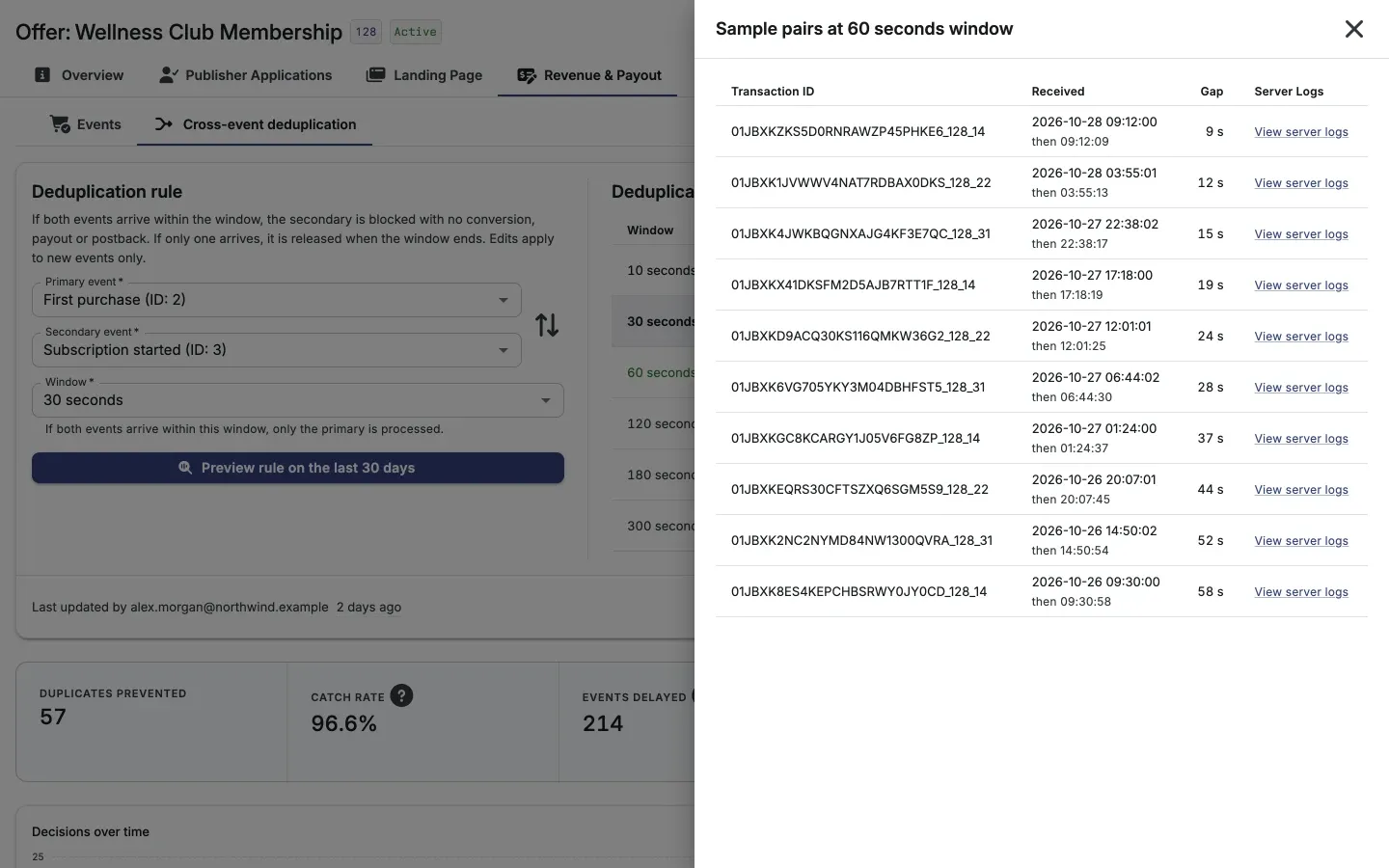
Treat preview figures as an upper bound. The live rule allows no extra time at the window edge and skips requests the preview cannot tell apart, such as requests with an external transaction ID. The preview includes conversions that filters already rejected, but those do not count toward Payout and Revenue. Secondaries that a live rule already blocked are not in the conversion data, so they do not appear in the preview.
By default, your organization can run 10 previews per minute. When you reach the limit, the button shows a countdown until you can try again. A large offer can make the preview time out with Preview took too long. Try again.
Track results
Section titled “Track results”Below the rule, the summary cards, chart, and decision history cover the time range selected in Decision history (Last 24 hours by default, at most 31 days).
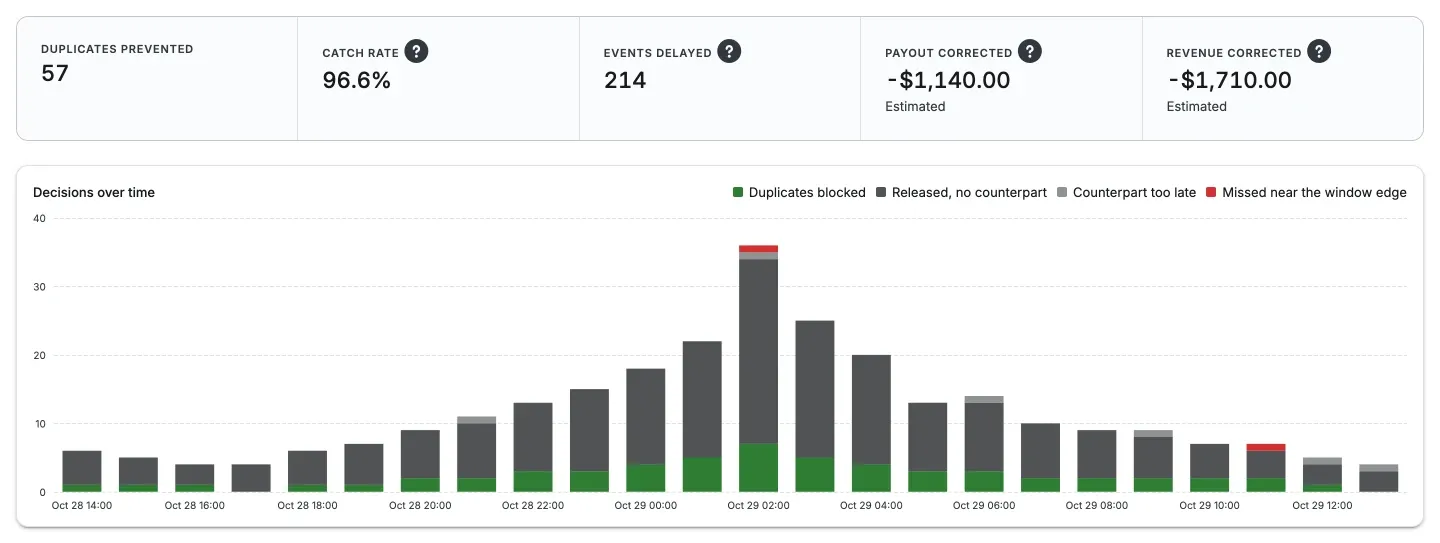
| Card | Description |
|---|---|
| Duplicates prevented | Secondary events blocked |
| Catch rate | Blocked secondaries divided by all secondaries received within the window, including those that reached the deduplication step too late to block |
| Events delayed | Events that waited the full window without a counterpart |
| Payout corrected | Estimated. Payout taken off your totals by blocked duplicates: blocked conversions multiplied by each secondary event’s current default payout, shown as a negative amount |
| Revenue corrected | Estimated. Revenue taken off your totals by blocked duplicates: blocked conversions multiplied by each secondary event’s current default revenue, shown as a negative amount |
Payout corrected and Revenue corrected are estimates, not billed amounts. They use the secondary event’s current default values in the offer currency. Publisher-specific payouts, percentage-based amounts, and past payout or revenue changes are not reflected. For combined types (CPAxCPS, RPAxRPS) only the fixed per-conversion part counts.
Decisions over time shows, per hour or day, Duplicates blocked, Released, no counterpart, Counterpart too late, and Missed near the window edge.
Decision history
Section titled “Decision history”Decision history lists one row per click transaction, newest first. Filter by Classification or Outcome, or search by transaction ID (with or without the _<offer>_<publisher> suffix) or execution ID.
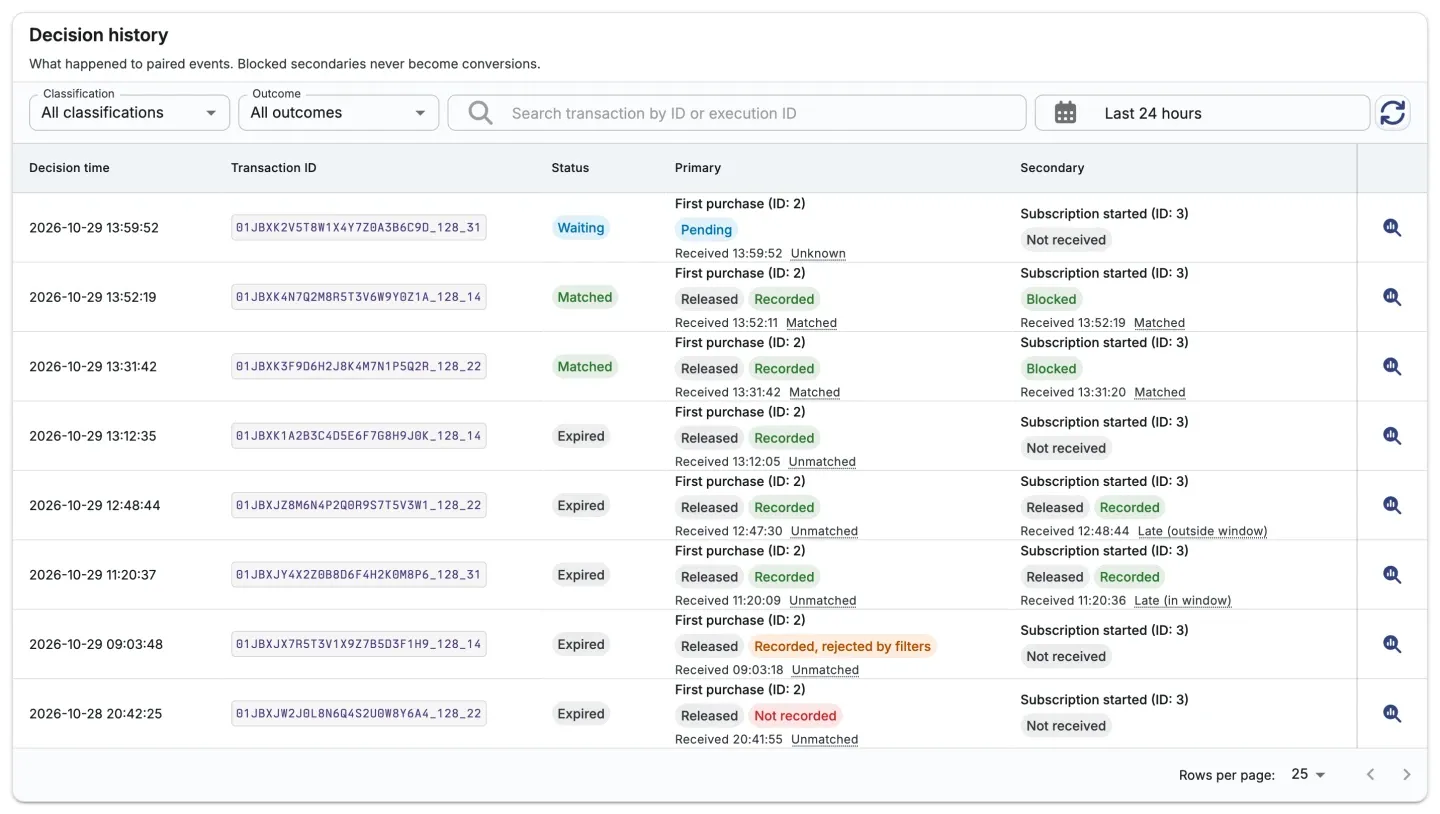
| Column | Description |
|---|---|
| Decision time | When Integr8 last decided on the transaction |
| Transaction ID | The click’s transaction ID in the <transaction_id>_<offer>_<publisher> format |
| Status | Matched (both arrived within the window), Waiting (the window is still open), or Expired (the window ended without a match) |
| Primary, Secondary | The event, its outcome, when Integr8 received it, and its classification |
Each event shows one outcome: Blocked, Released, Pending (waiting for the window to end), or Not received. Classifications are Matched, Unmatched, Late (outside window), and Late (in window); a Pending event shows Unknown until it is decided. Hover a status or classification for an explanation.
A Released event also shows what happened after release:
| Label | Meaning |
|---|---|
| Recorded | A conversion exists for the event |
| Recorded, rejected by filters | A conversion exists, but fraud or attribution filters rejected it |
| Not recorded | Attribution failed. Hover to see the error |
| Processing | Attribution is still running |
| Status unavailable | Integr8 could not determine the result, for example because the Server Logs have expired |
Repeated deliveries of an event that was already handled are ignored and do not appear in decision history, so the Duplicate and Redelivery classification filters return no rows. Find them in Server Logs as Duplicate ignored. Use the row’s server logs action to open Conversion Attribution Logs for the transaction.
Decision history is kept with no expiry. Server Logs keep about 30 days, so older rows cannot link to logs.
Plan and access
Section titled “Plan and access”| Situation | What you can do |
|---|---|
| Plan includes cross-event deduplication | Set up, edit, remove, preview, and review decisions |
| Plan does not include it | Run the preview only |
| Plan downgraded with a rule in place | The rule keeps working. You can remove it through the API but not edit it |
| View-only access or archived offer | View the rule and run the preview |
Limits
Section titled “Limits”- A blocked secondary cannot be sent again: a resend is ignored as a duplicate, even if the primary later failed to record. To recover a sale, use a new click or contact support.
- One rule per offer, one decision per click transaction.
- Window: whole seconds from 1 to 300.
Next steps
Section titled “Next steps”- Revenue and payouts to configure the events in the rule.
- Server Logs to inspect individual deduplication decisions.
- Event Report to review recorded events.