

Landing page templates
Landing page templates are named, ordered lists of query parameters. Use them to reuse an advertiser’s tracking parameters or apply a standard query string across multiple offer landing pages. Parameter values can include macros such as {transaction_id}. To apply a template, first create an offer.
Before you begin
Section titled “Before you begin”- Decide whether the template belongs to one advertiser or should be available across all advertisers.
- Have the parameter names and values your advertiser requires, including attribution macros.
- Global templates require Integrations read access to view and write access to edit. Advertiser templates use Advertisers read and write access instead. Applying templates to existing landing pages requires Advertisers and Offers write access.
Find your templates
Section titled “Find your templates”Go to Offers > Offers Management and select Landing Page Templates, next to Offers and Publisher Applications.
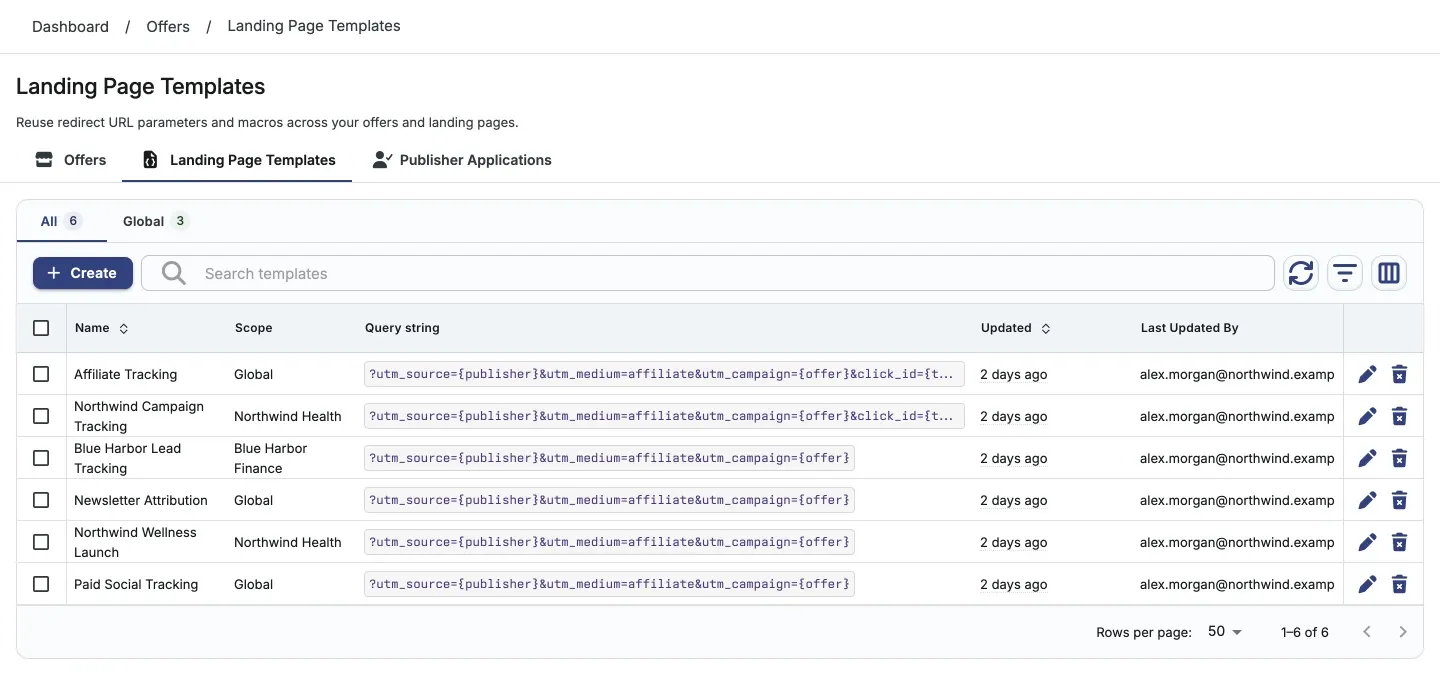
The All and Global tabs show counts. Use Search templates or the Scope and Advertiser filters to narrow the list. By default, the table shows Name, Scope, Query string, Updated, and Last Updated By. Created is hidden and can be enabled in the column selector.
Create a template
Section titled “Create a template”- Click Create to open Create Landing Page Template.
- Choose Scope:
- Global makes the template available across all advertisers.
- Advertiser limits it to the advertiser you choose in Advertiser.
- Enter Template Name. Names are case-sensitive and must be unique within the chosen scope: among global templates or for that advertiser.
- Under Parameters, click Add Parameter and enter each Name and Value. For example, use
cidwith{transaction_id}. Drag rows to set their order. - Click Create Template.
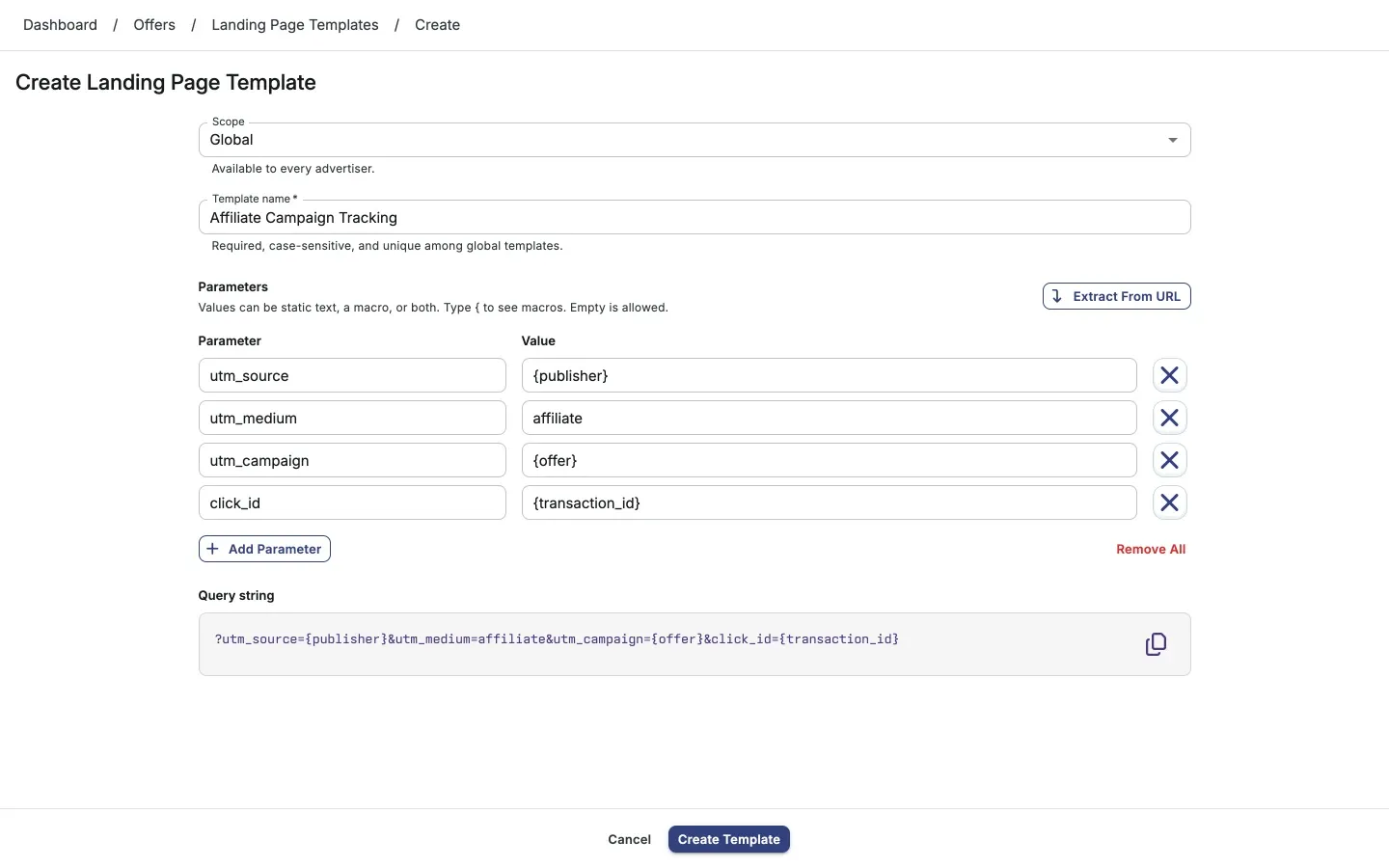
Scope cannot be changed after creation. Create another template if you need a different scope.
Edit or delete a template
Section titled “Edit or delete a template”- Open the template by clicking its name in the list.
- On URL Template, change Template Name or the parameter rows.
- Click Save. Use Discard to abandon unsaved edits.
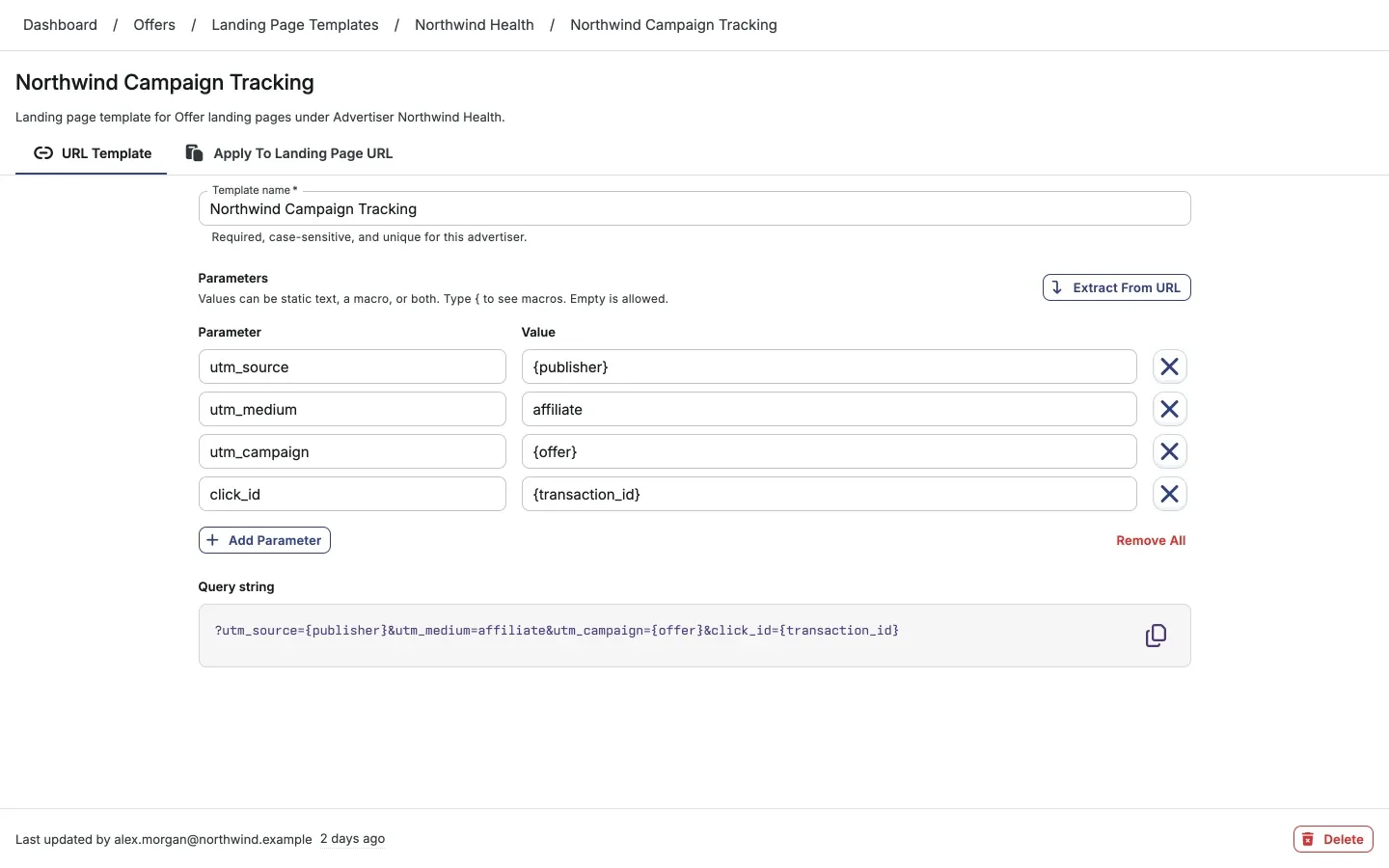
Saving a template does not update existing landing page URLs. Use Apply to Landing Page URL to apply it separately. This tab is disabled while you have unsaved changes.
To delete a template, use its Delete action and confirm Delete. To delete several templates, select them in the list and use the bulk Delete action. Deleting a template does not change landing page URLs already saved.
Apply to landing page URLs
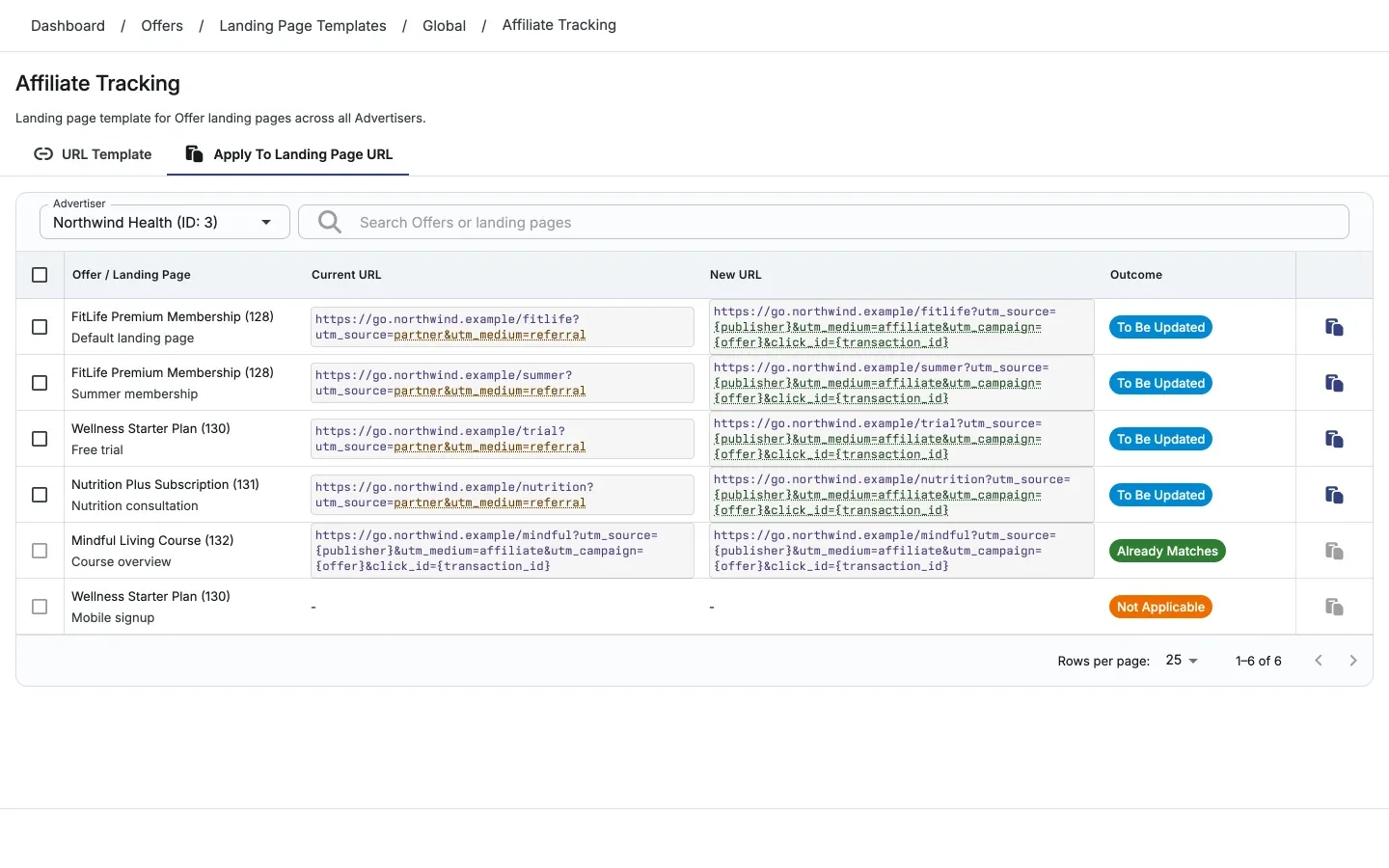
Section titled “Apply to landing page URLs”Applying a template replaces the whole query string of each selected landing page URL. Existing parameters that are not in the template are removed. Review the proposed URLs before confirming, especially attribution parameters.
- Open a saved template and select Apply to Landing Page URL.
- For a global template, select Advertiser in the table toolbar first. An advertiser template already targets its own advertiser.
- Review the default and optional landing pages in Offer / Landing Page, alongside Current URL, New URL, and Outcome. The changed part of New URL is highlighted.
- Select the rows to update. Only To Be Updated rows can be selected. The header checkbox selects eligible rows on the current page, not every page. You can update up to 1,000 landing pages at once.
- Click Apply Template, review the confirmation, and click Update. For a single landing page, use its row’s Apply Template action instead.
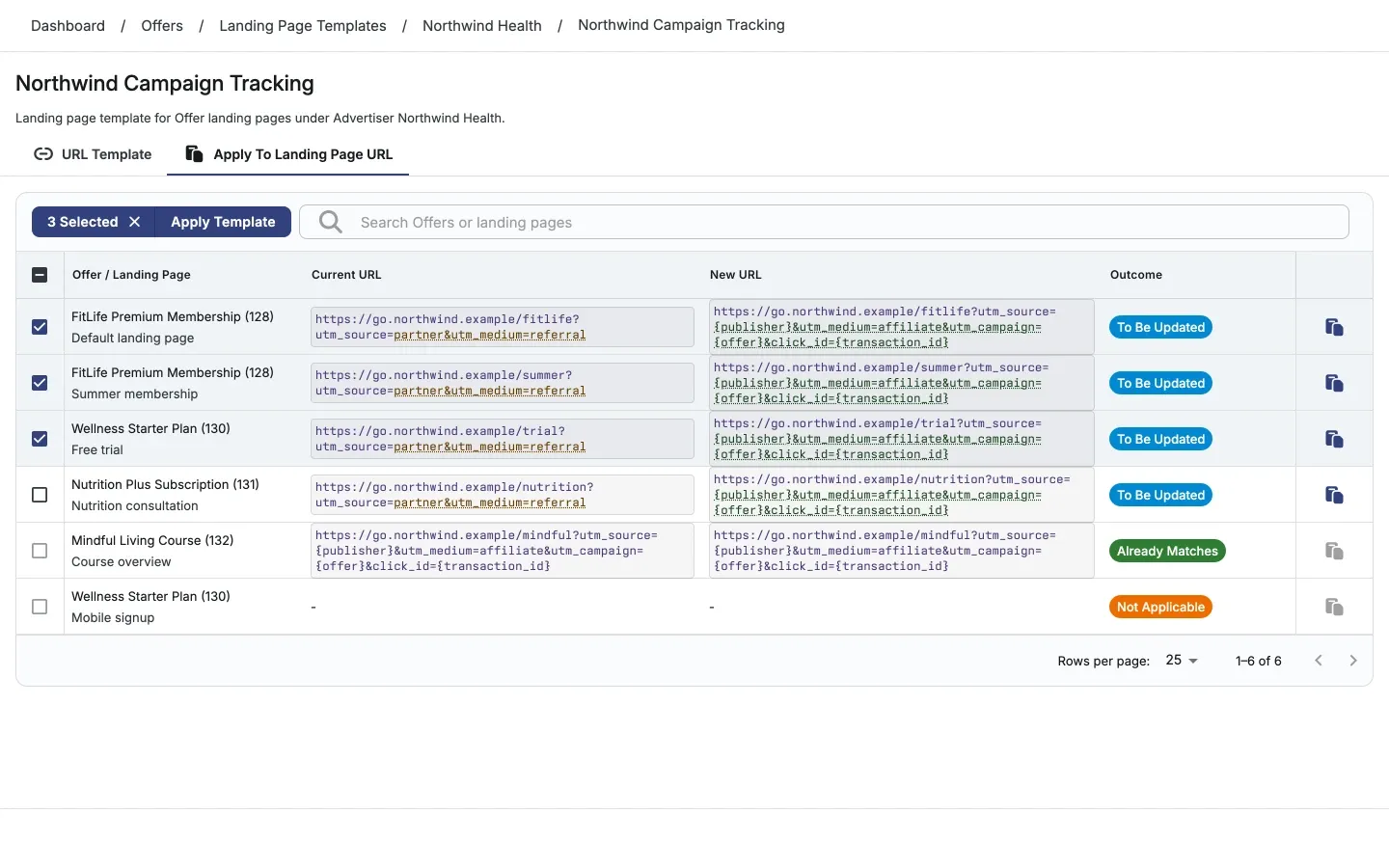
| Outcome before applying | Meaning |
|---|---|
| To Be Updated | The template changes this landing page URL. You can select it. |
| Already Matches | The URL already matches the template. No update is needed. |
| Not Applicable | The template cannot be applied to this row. Hover over or focus the outcome to read the reason. |
During and after an update
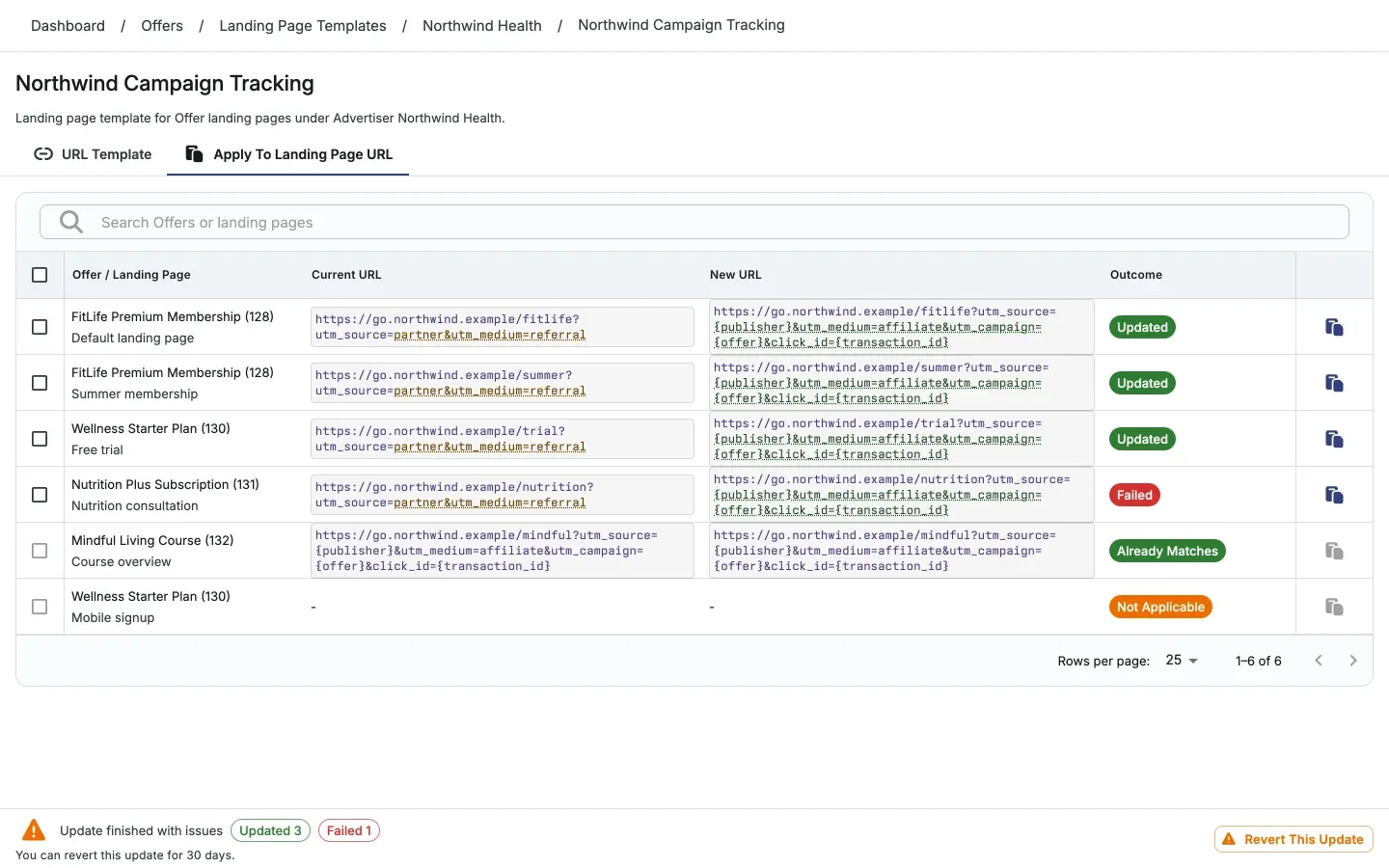
Section titled “During and after an update”The table stays on screen. Selected rows show Updating…, then their confirmed results, such as Updated, Unchanged, Skipped, or Failed. The URLs reload after the update. The pinned footer shows progress and a summary, and one notification reports completion. Review any skipped or failed rows rather than assuming every selected URL changed.
You can leave the page while the update runs.
Revert an update
Section titled “Revert an update”Use Revert This Update in the pinned footer to revert an update within 30 days. Review the results after reverting. A Changed since update outcome means the URL changed after the update and was not restored by the revert.
Use a template in an offer form
Section titled “Use a template in an offer form”- Open an offer’s Landing Page tab and click Create, or edit an existing landing page.
- Enter the Redirect URL, then choose a template in Apply landing page template.
- Compare Before and After. The template replaces the query string in the URL draft. Clearing the selection restores the URL from before the template was picked.
- Click Save in the landing page dialog to save the change.
Choosing a template does not save the form. The same picker is available on offer redirect URL fields, where changes also remain a draft until you save the form.
Next steps
Section titled “Next steps”- Manage landing pages for individual offer destinations.
- Generate tracking links for your updated landing pages.