

Smart links
A Smart Link is a single URL that routes each click to one of several offer and landing page combinations, called redirect URLs. Give publishers one Smart Link instead of a separate link per offer. Integr8 picks the destination with the strategy you choose and still applies every offer’s fraud detection, capping, and targeting rules.
Before you begin
Section titled “Before you begin”- Create at least two offers, or one offer with more than one landing page.
- Decide whether you want to split traffic by weight or try destinations in priority order.
When to use a Smart Link
Section titled “When to use a Smart Link”- Split traffic across offers or landing pages to compare them.
- Send traffic to your best offer first and keep backup offers ready when it rejects a click.
- Give publishers one link that keeps working when an offer is capped or out of targeting.
Find your Smart Links
Section titled “Find your Smart Links”Go to Offers > Smart Links. The Smart Links management list shows each Smart Link with its offers, fallback offer, redirect strategy, and status. Use the All, Active, Deactivated, and Archives tabs to filter the list.
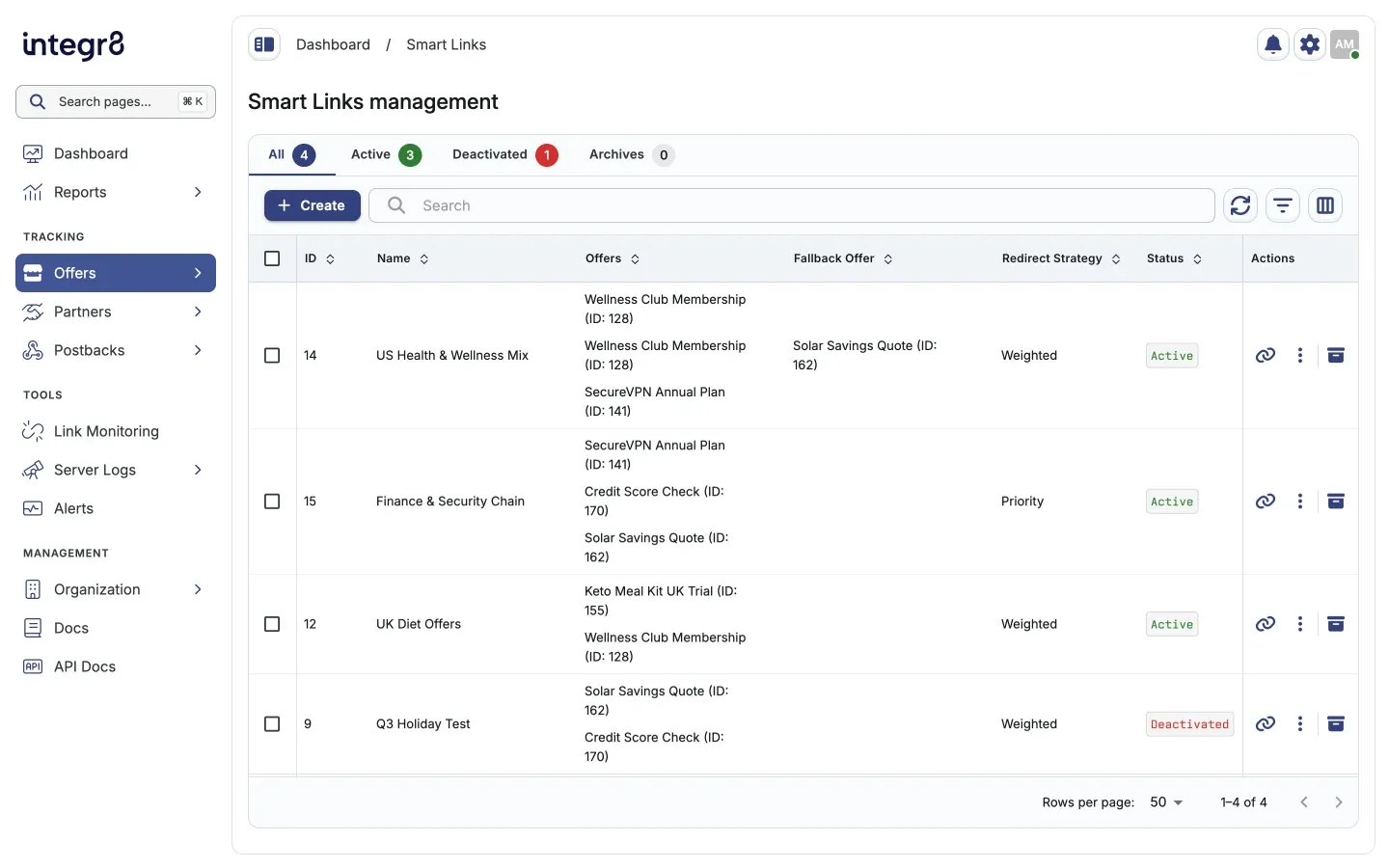
Each row has actions to generate a tracking link, open more options (edit, deactivate, or delete), and archive the Smart Link.
Create a Smart Link
Section titled “Create a Smart Link”Creating a Smart Link has two steps: General Settings, then Redirect Strategy.
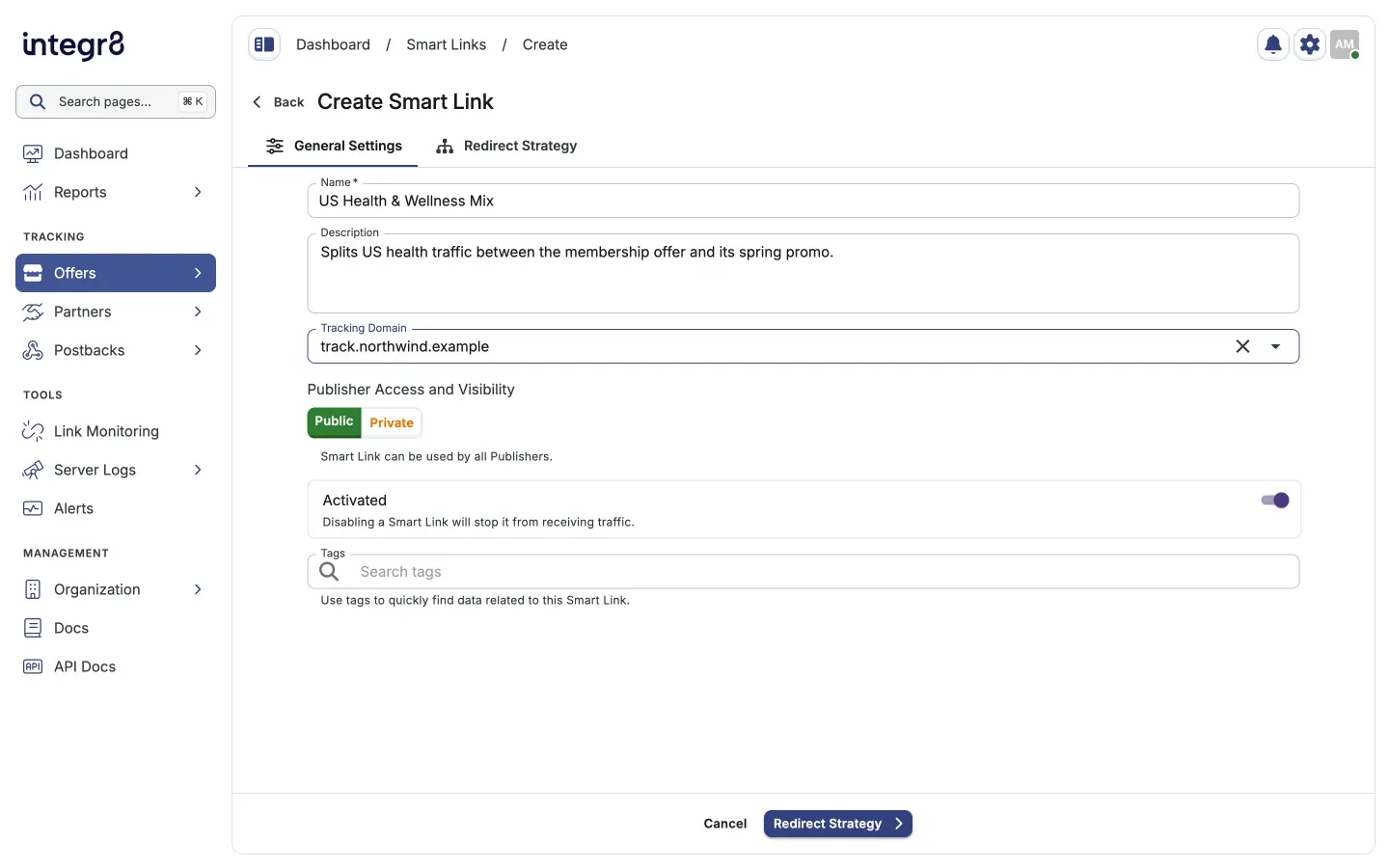
- Go to Offers > Smart Links and click Create.
- On General Settings, fill in the fields:
- Name (required) and an optional Description.
- Tracking Domain used in the Smart Link’s tracking URL.
- Publisher Access and Visibility:
Publiclets every publisher use the Smart Link.Privatelimits it to publishers who have access to all of its offers. - Activated keeps the Smart Link receiving traffic. Turn it off to stop traffic.
- Optional Tags to find the Smart Link later.
- Click Redirect Strategy. The step opens once the required general settings are valid.
- Choose Weight or Priority and set up at least two redirect URLs. See the sections below.
- Optional: turn on Enable Fallback URL and pick a fallback offer and landing page.
- Click Create Smart Link.
Set up redirect URLs
Section titled “Set up redirect URLs”Each redirect URL is an offer plus one of its landing pages.
- Click Add Redirect URL to add a row, then select the Offer and its Landing Page. Default is the offer’s default landing page. If the offer has no other landing pages, Integr8 selects Default for you.
- You can use the same offer more than once with different landing pages. The same offer and landing page combination can only appear once.
- A Smart Link needs at least two redirect URLs. Remove buttons are disabled when only two remain.
- The Landing Page field shows the destination domain and the landing page’s Link Monitoring status, such as Healthy, Pending, or Not monitored.
Traffic control icons
Section titled “Traffic control icons”Icons next to the offer name show which traffic controls the offer has turned on. Hover over an icon to see what it means.
| Icon | Meaning |
|---|---|
| Shield | Fraud detection is enabled, so some clicks may be rejected. |
| Traffic light | Capping is enabled, so clicks may be blocked once a cap is reached. |
| Crosshairs | Targeting is enabled, so clicks outside the targeting rules may be rejected. |
An offer with no icons accepts every click. This matters most for the Priority strategy and for the fallback.
Weight strategy
Section titled “Weight strategy”Weight splits traffic across redirect URLs. Use it to test offers or landing pages against each other.
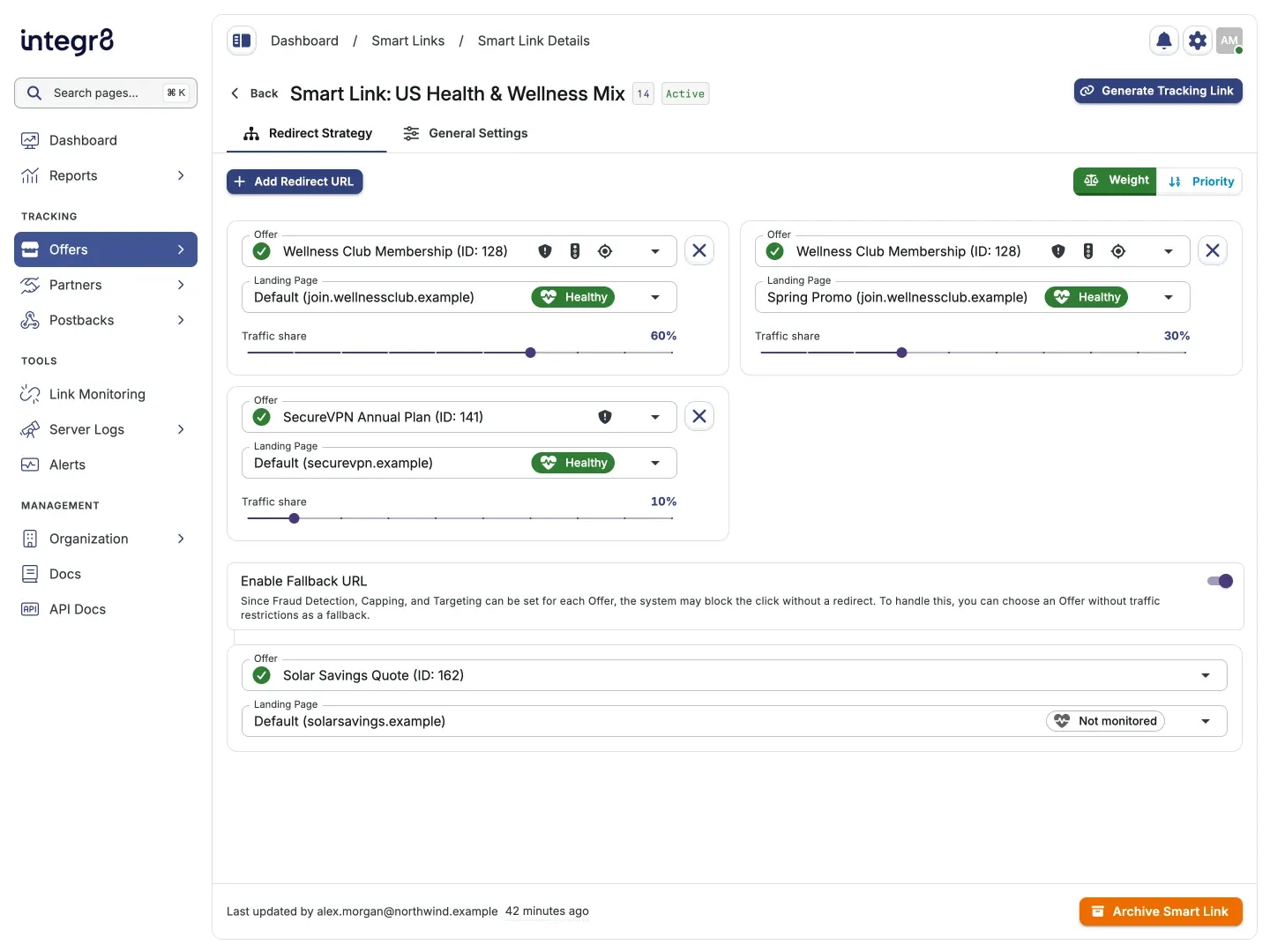
- Drag the slider on each card to set its weight. Traffic share shows the percentage of traffic the redirect URL receives: its weight divided by the total weight of all redirect URLs.
- Hover over the percentage to see the weight behind it. A redirect URL with a weight of 0 shows No traffic.
Priority strategy
Section titled “Priority strategy”Priority tries redirect URLs in order. Each click goes to the first redirect URL that accepts it. The next one is only tried when the one above rejects the click because of fraud detection, capping, or targeting.
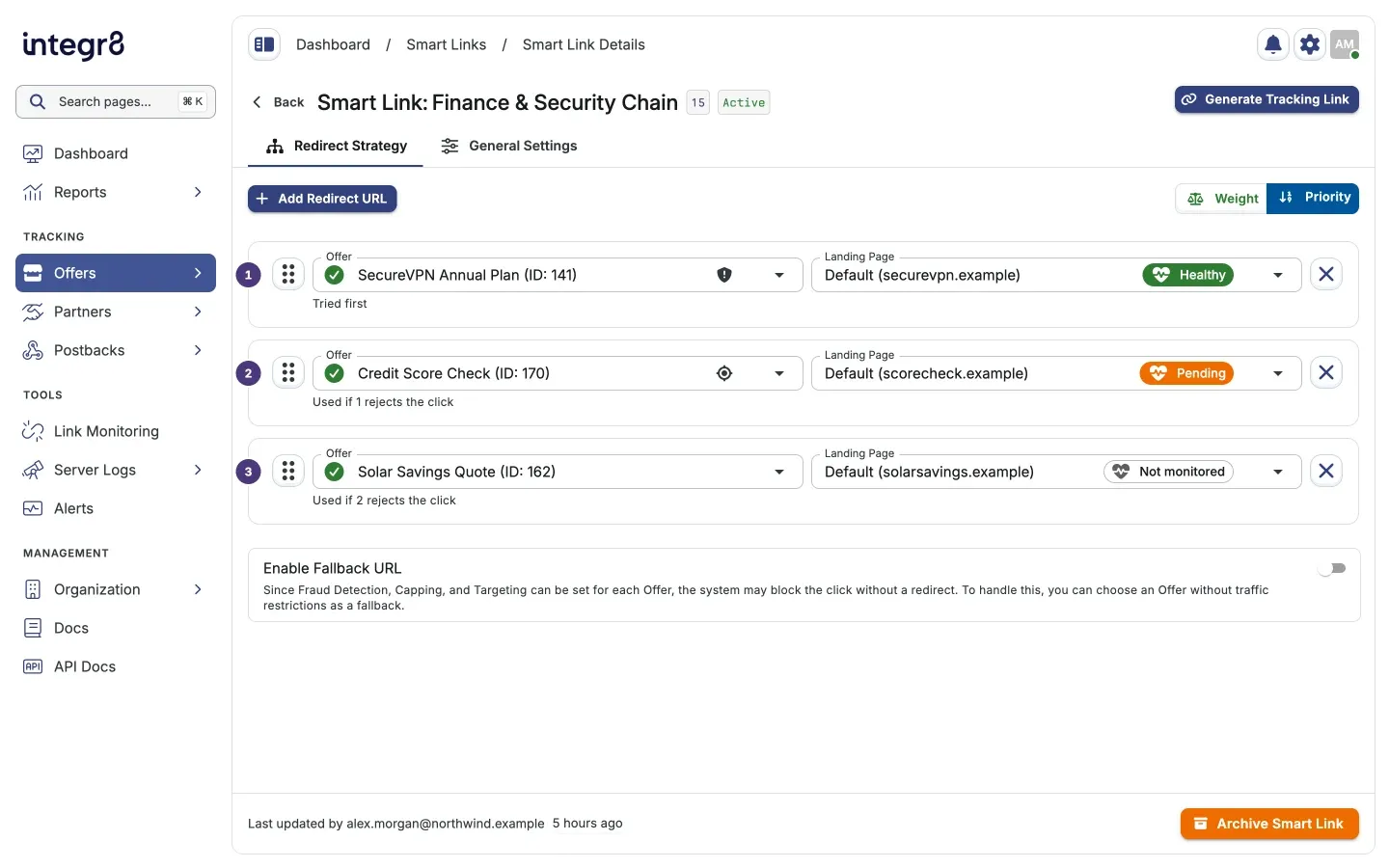
- The number on each row is its rank. Tried first marks the first row, and the rows below show which rank they back up, such as Used if 1 rejects the click.
- Drag the handle on the left of a row to change the order.
- If a redirect URL has no traffic controls, it accepts every click and the rows below it never receive traffic. Integr8 shows a warning on that row: “Links below won’t receive traffic because this offer never rejects clicks.” Move that offer to the bottom or add traffic controls to it.
Set a fallback URL
Section titled “Set a fallback URL”If every redirect URL rejects a click, the fallback receives it. Turn on Enable Fallback URL, then select an Offer and Landing Page. Choose an offer without fraud detection, capping, or targeting so the fallback accepts every click.
If no redirect URL accepts a click and no fallback is set, the click is lost: no redirect and no logging.
Edit a Smart Link
Section titled “Edit a Smart Link”Open a Smart Link from the list. Switch freely between the Redirect Strategy and General Settings tabs, then click Save. Discard asks you to confirm, then returns the Smart Link to its last saved state.
When you remove a saved redirect URL, it stays in place marked To be removed on save until you save. Click Undo to keep it. Redirect URLs you added since the last save are removed right away.
Archive and restore a Smart Link
Section titled “Archive and restore a Smart Link”Archiving stops traffic and moves the Smart Link to the Archives tab.
- Open the Smart Link with no unsaved changes and click Archive Smart Link at the bottom of the page, or click the archive action in the list.
- Confirm the dialog.
An archived Smart Link opens read-only. Restore it from the Archives tab or from the Smart Link page to make changes. Traffic may take a moment to resume after restoring.
Generate a tracking link
Section titled “Generate a tracking link”- Open the Smart Link and click Generate Tracking Link, or use the tracking link action in the list.
- Select the Publisher to credit for the traffic.
- Fill in Sub ID, Ext. Transaction ID, or extra parameters as needed, then copy the URL.
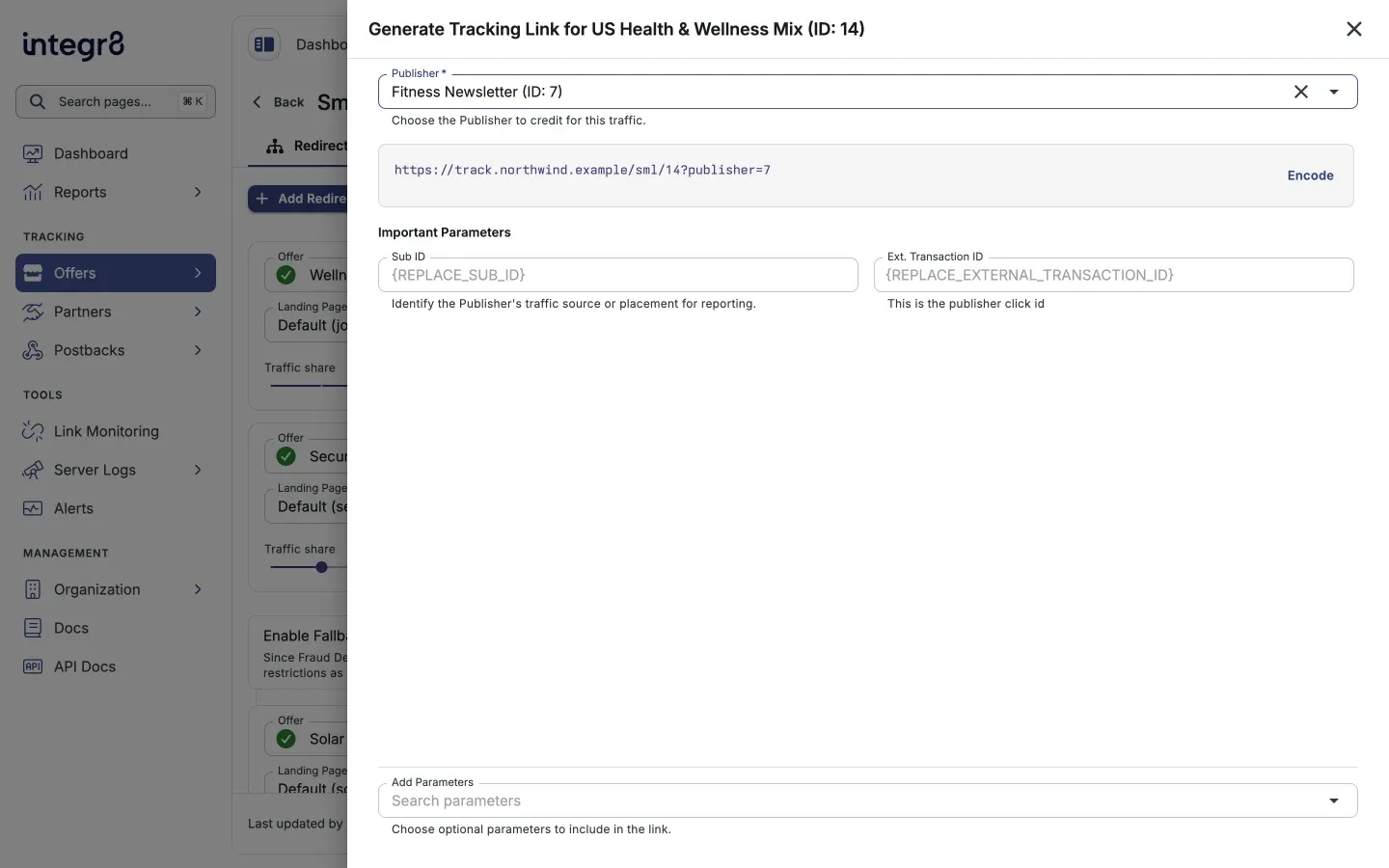
Smart Link tracking URLs use the /sml/{Smart Link ID} path on your tracking domain, for example https://track.example.com/sml/14?publisher=7. Integr8 picks the offer and landing page for each click, so the tracking link has no offer or landing page field.
Common pitfalls
Section titled “Common pitfalls”| Issue | Fix |
|---|---|
| No fallback set | Turn on Enable Fallback URL with an offer that has no traffic controls. |
| Lower priority rows never get traffic | An offer without traffic controls accepts every click. Move it to the bottom of the priority list. |
| Wrong strategy for the use case | Use Weight to test offers, Priority when you have a preferred offer with backups. |
| Private Smart Link with mismatched access | Make sure every publisher who should use the link has access to all of its offers. |
Next steps
Section titled “Next steps”- Set offer caps so the Smart Link can detect a capped offer and move on.
- Apply targeting rules on the offers in the link to control which clicks each one accepts.
- Monitor landing pages to see their health in the Smart Link editor.