
Server Logs
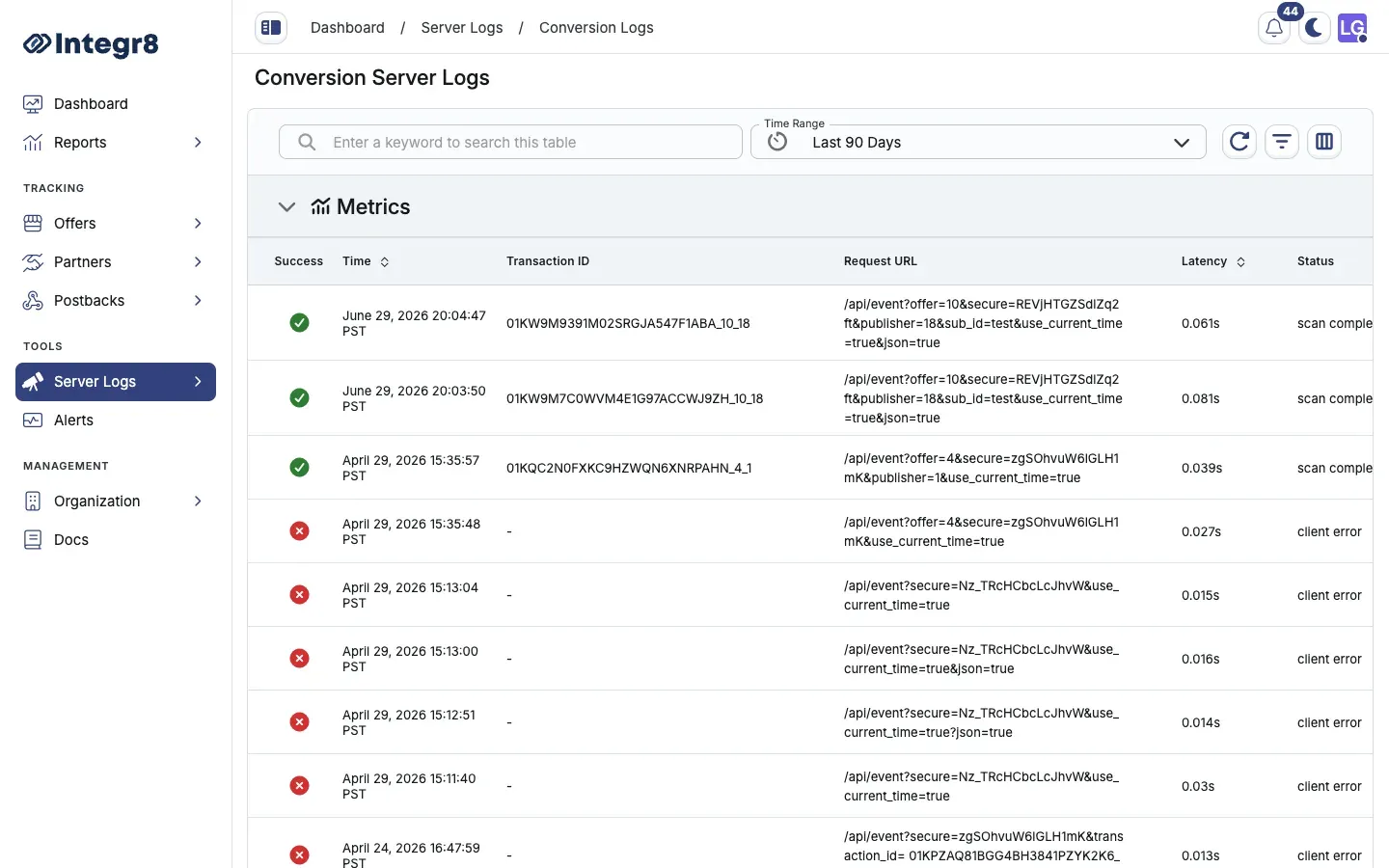
Server Logs record every request Integr8 received, including rejected and failed requests. Use them to debug attribution, trace postback failures, inspect conversion rejections at the raw request, and confirm tracking links and postback URLs.
What this report shows
Section titled “What this report shows”Server Logs are the raw request trail behind clicks and conversions. They include requests that were rejected or returned errors, not only successful events.
How to access it
Section titled “How to access it”In the sidebar under TOOLS, open Server Logs, then choose a log type from the menu:
| Section | Description |
|---|---|
| Conversion Logs | Incoming conversion postbacks, both successful and failed |
| Conversion Attribution Logs | Click attribution events, including accepted and rejected clicks |
| Conversion Rejection Logs | Conversions rejected by fraud rules, with the rejection reason |
If you have more than one integration, pick it from the integration selector on the page.
Available columns
Section titled “Available columns”Default columns, from left to right:
| Column | Description |
|---|---|
| Status | HTTP response status returned to the caller |
| Time | Timestamp of the request |
| Transaction ID | Unique identifier for this request |
| Request URL | The full URL Integr8 received, including parameters |
| Server IP | IP address of the server that handled the request |
| Latency | Server processing time, shown in seconds |
| Error | Error message if the request failed validation or processing |
| Metadata | Parsed parameters extracted from the request |
Use the columns control in the toolbar to show or hide columns.
Filters and date ranges
Section titled “Filters and date ranges”Set the window with the Time Range picker. Use Set Filters to narrow by:
- Transaction ID
- Request URL
- Latency
- Status
- Error
- App Region
- App Version
- Postbacks Fired
- Server IP
Switch log type from the Server Logs menu. That is not a table filter.
When debugging a specific postback issue, copy the Transaction ID from the Click Report or Event Report, then filter Server Logs by that ID. The matching row shows the full URL received and any parsing errors.
Export options
Section titled “Export options”Server Logs do not include the Export button used on reports. Narrow the date range and review rows in the table. For high-volume log analysis, contact support.
Related reports
Section titled “Related reports”- Click Reports: row-level click data with fraud reason tagging
- Event Report: event-level data with status and rejection reason