

Migrate from HasOffers
Connect a HasOffers or TUNE Network account to copy network configuration into Integr8. HasOffers supports Network connections only.
Still evaluating the switch? See how Integr8 compares with TUNE, formerly HasOffers.
Before you begin
Section titled “Before you begin”- You need your Integr8 email address and password.
- In HasOffers, go to Support > API and prepare the Network ID, Network Token, and API domain. See TUNE Network API authentication.
- Ask your HasOffers administrator to allow the required API access and IP address if your account restricts API calls.
What you can migrate
Section titled “What you can migrate”| HasOffers entity | Integr8 result |
|---|---|
| Advertiser | Advertiser |
| Affiliate | Publisher |
| Offer | Offer with visibility, payout and revenue, caps, targeting, and terms |
| Offer URL | Landing page |
| Goal | Event |
Creatives, affiliate login users, postbacks, and historical reporting data are not migrated.
Create a HasOffers Network connection
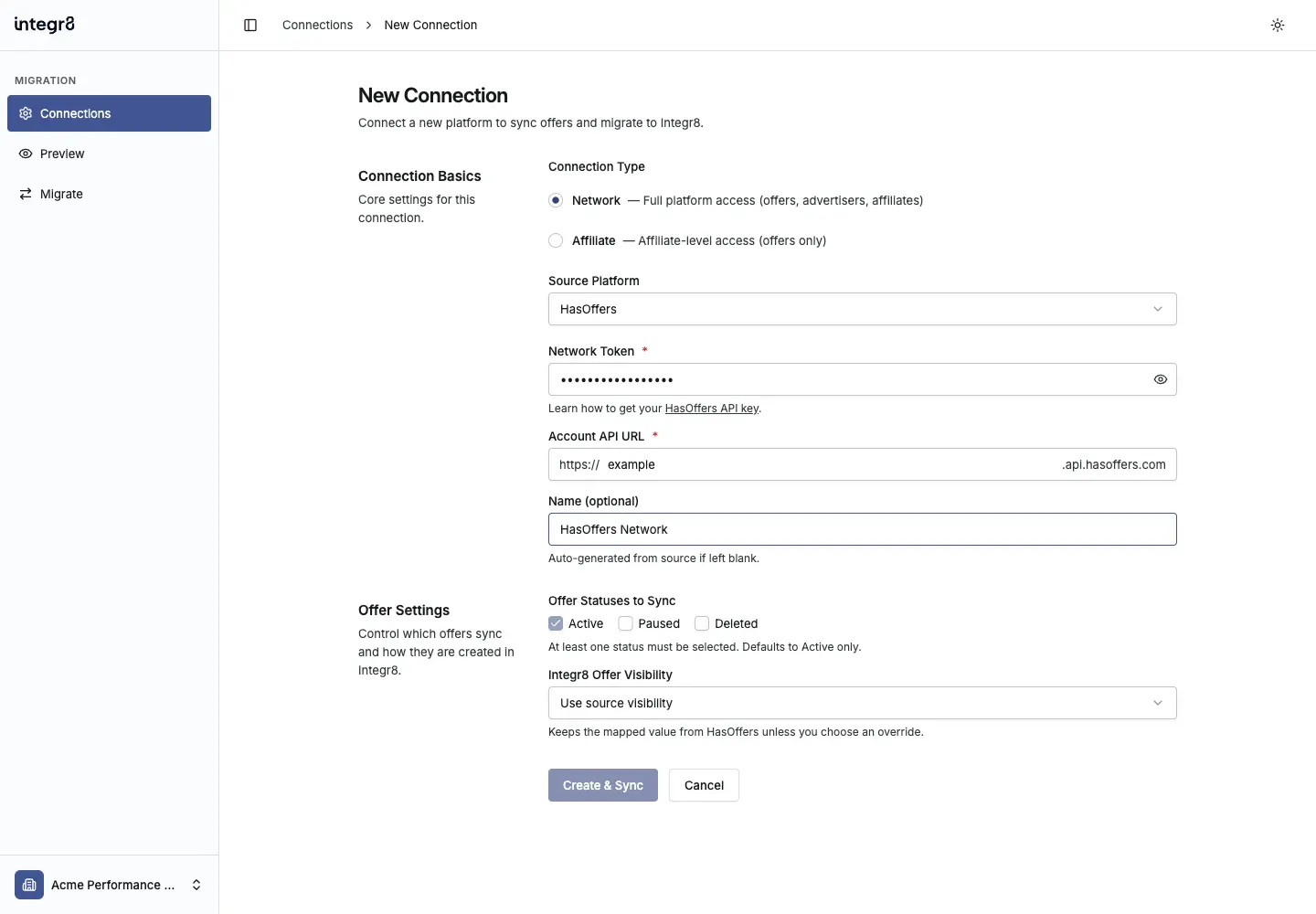
Section titled “Create a HasOffers Network connection”In this step, you connect your HasOffers network, identify its account API domain, and choose which offer statuses and visibility values to prepare for Integr8.
- Open the Migration Tool and sign in with your Integr8 credentials.
- On Connections, select Add Connection.
- Keep Connection Type set to Network.
- Set Source Platform to HasOffers.
- Paste your token into Network Token.
- In Account API URL, enter only the account portion shown between
https://and.api.hasoffers.com. Forhttps://example.api.hasoffers.com, enterexample. - Enter an optional Name for the connection.
- Under Offer Statuses to Sync, select at least one of Active, Paused, or Deleted.
- Under Integr8 Offer Visibility, keep Use source visibility or choose an override.
- Select Create & Sync.
Sync HasOffers data
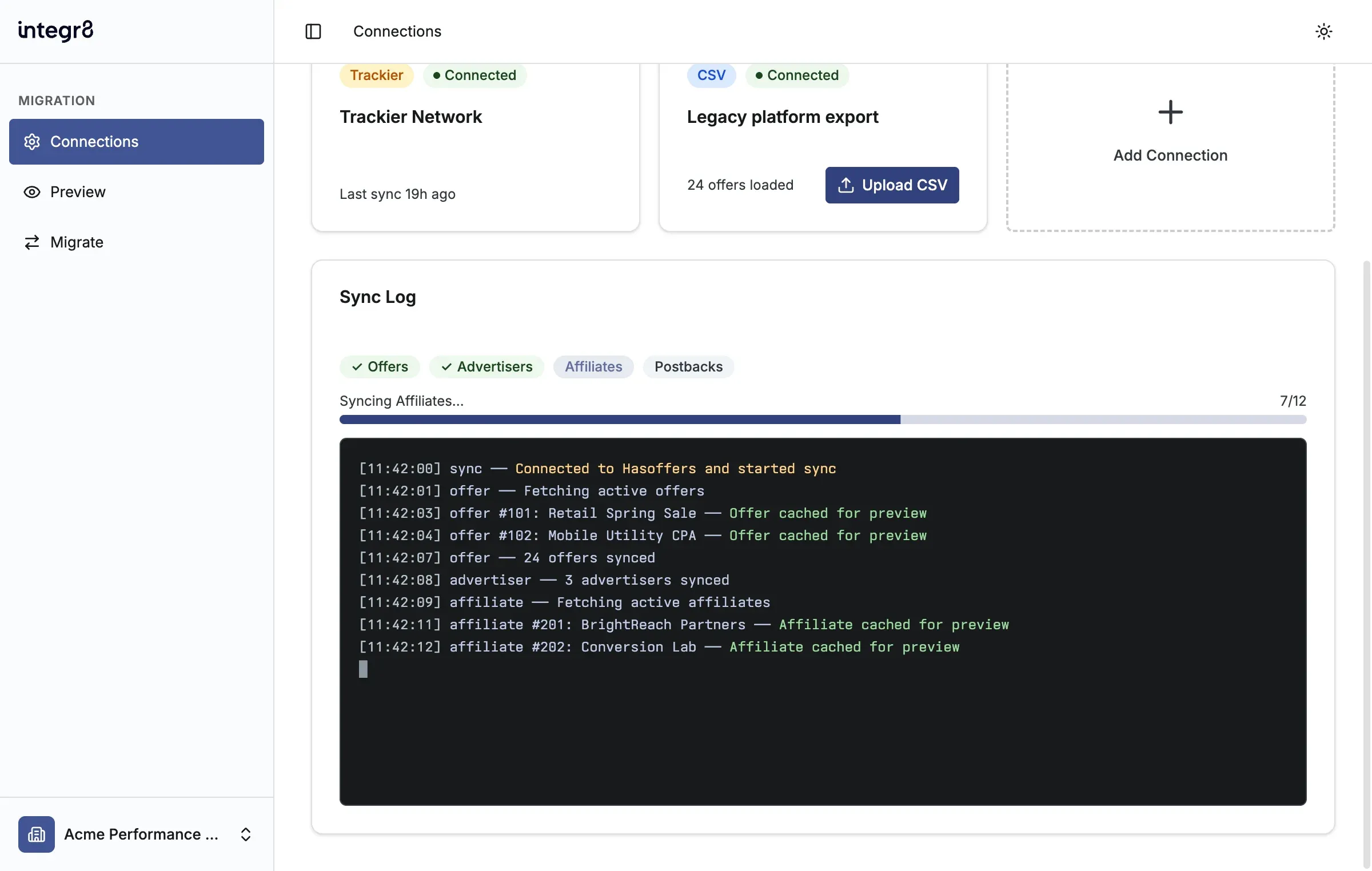
Section titled “Sync HasOffers data”The sync copies HasOffers records into a temporary Migration Tool preview. It does not change records in HasOffers or create records in Integr8.
- Follow the phase badges in Sync Log.
- Review each live log entry as offers, advertisers, and affiliates are cached.
- Wait for the sync to complete before opening Preview.
Review and migrate HasOffers data
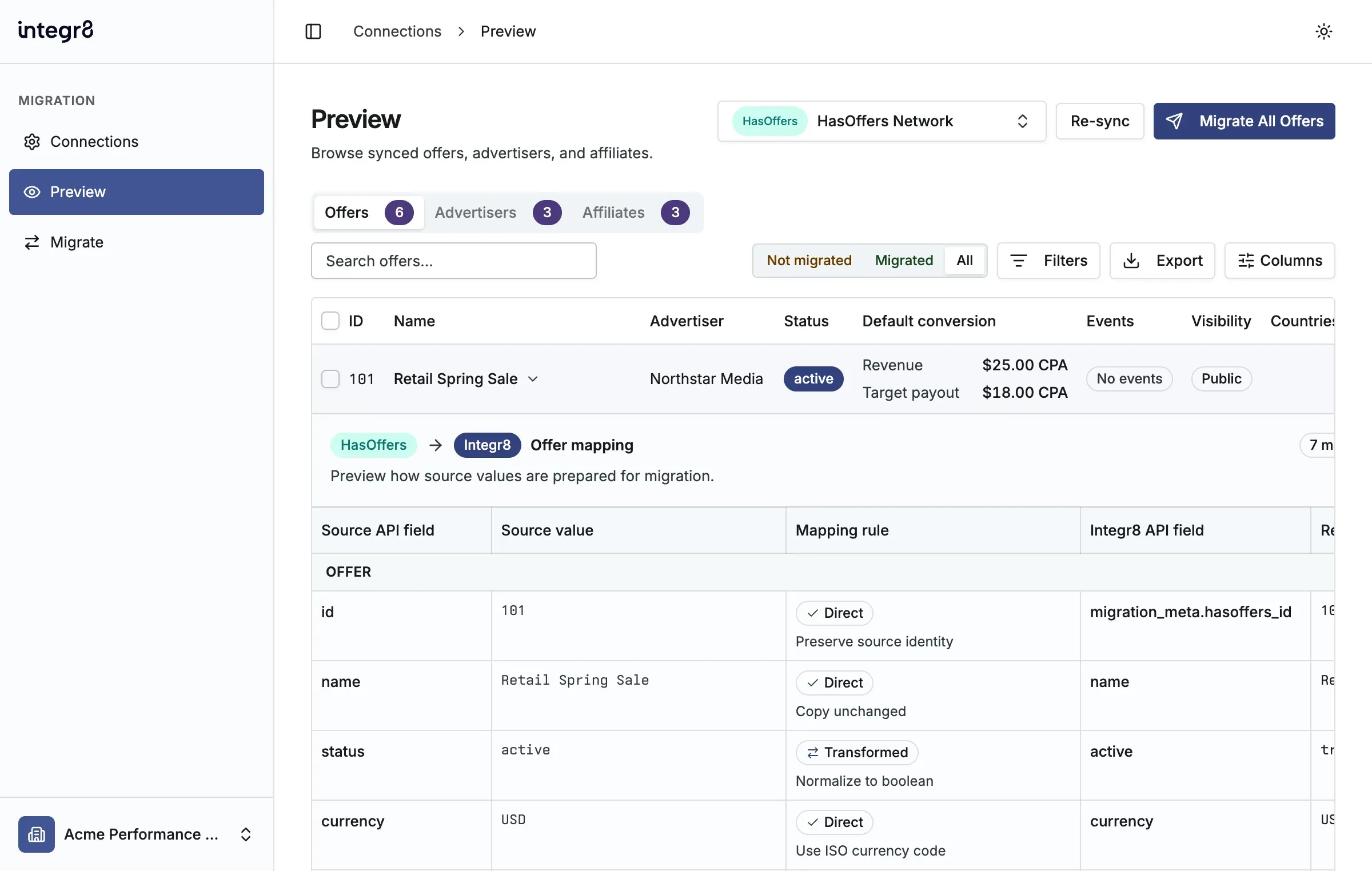
Section titled “Review and migrate HasOffers data”In this step, you verify how HasOffers fields map to Integr8, choose the records to move, and confirm the migration before anything is created.
- Open the HasOffers connection card.
- Review the Offers, Advertisers, and Affiliates tabs on Preview.
- Expand an offer to compare HasOffers API fields and values with the resulting Integr8 offer, landing pages, economics, goals, and targeting.
- Check the mapping status to see which values are copied directly, transformed, or omitted.
- Use All, Migrated, and Not migrated to check previous results.
- Select individual rows or choose the available Migrate All action for the active tab.
- Confirm the number of records and select Start Migration.
When you migrate offers, the tool includes required advertisers. To migrate every affiliate as an Integr8 publisher, use the Affiliates tab separately.
Review migrated data
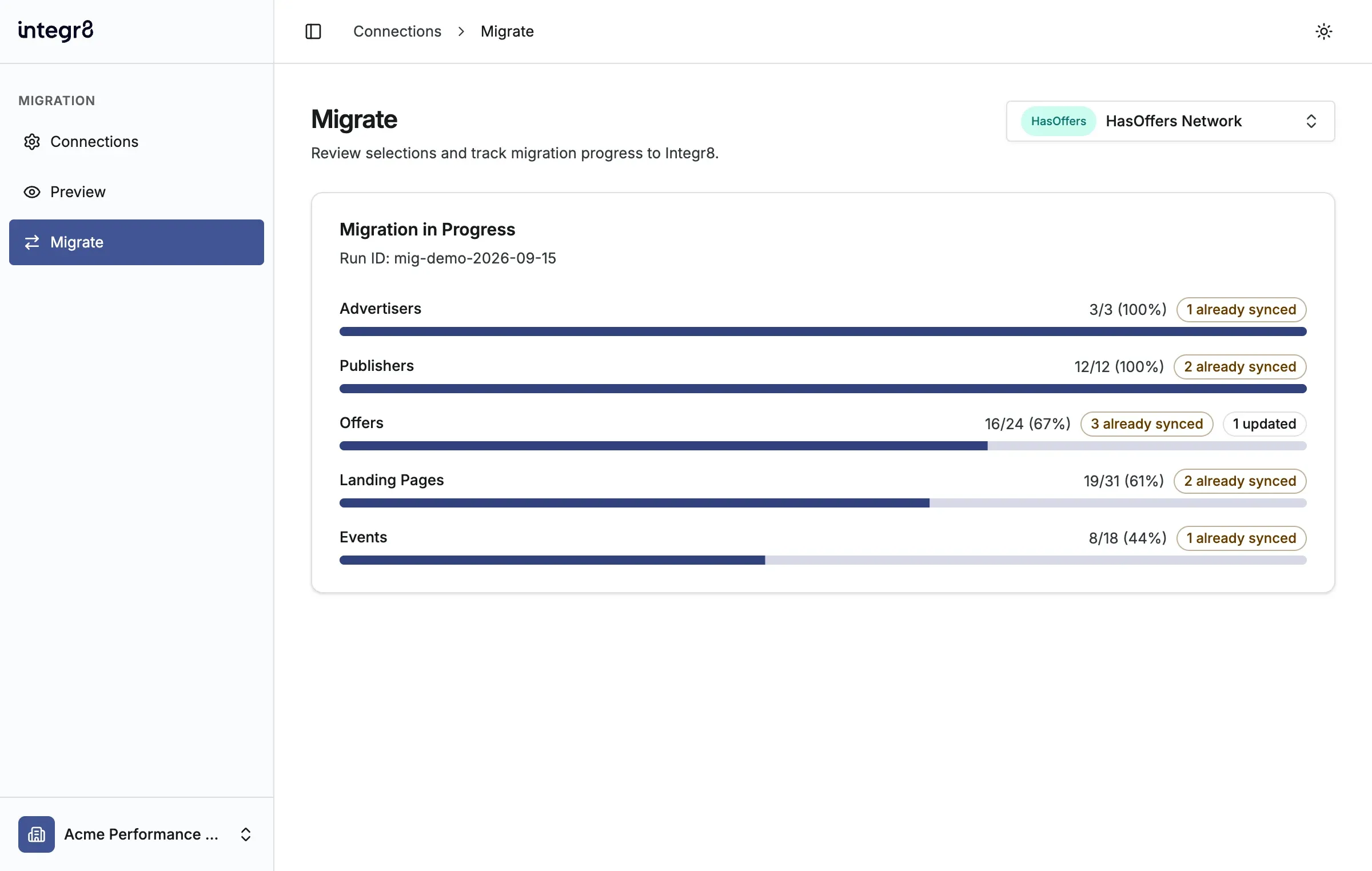
Section titled “Review migrated data”Use Migrate to confirm that each selected entity finishes successfully. The page shows live entity progress and continues to update while the server creates or reuses Integr8 records.
- Keep the Migrate page open while the migration runs.
- Review entity progress and the migration log for created, updated, already synced, or failed records.
- When the migration finishes, review the summary and open the resulting records in Integr8.
Re-sync or change settings
Section titled “Re-sync or change settings”- Use Re-sync after changing records in HasOffers.
- On Connections, open the connection action menu and select Edit to change statuses, visibility, or the network token.
- Leave Network Token blank while editing to keep the saved token. The account API URL cannot be changed after creation.
If validation fails, confirm the account portion of the API URL, the network token, and any IP allowlist. For more help, email support@integr8.co.