

Conversion tracking
A conversion is recorded when a transaction_id from a click is matched to a postback or pixel fire from the advertiser. Integr8 supports three methods: server-to-server postback, image pixel, and clickless postback. This page explains how matching works and helps you pick the right method.
Why it matters
Section titled “Why it matters”Accurate conversion tracking is the foundation of every payout, every fraud signal, and every report. A misconfigured method silently loses revenue and erodes trust with publishers.
How conversion matching works
Section titled “How conversion matching works”- A user clicks your tracking link. Integr8 generates a unique
transaction_id. - The
transaction_idis passed to the advertiser’s destination URL, for example?clickid={transaction_id}. - When the user converts, the advertiser fires a postback to Integr8 with the same
transaction_id. - Integr8 matches the postback to the original click and records the conversion.
When to use which method
Section titled “When to use which method”| Method | Use when | Trade-off |
|---|---|---|
| S2S postback | The advertiser’s system can fire a server-side request on conversion. | Most reliable. Recommended default. |
| Image pixel | S2S is not available and the advertiser controls the thank-you page HTML. | Requires a custom tracking domain. Vulnerable to ad blockers. |
| Clickless postback | Conversions have no associated click, for example direct app installs attributed by IDFA. | Loses click-to-conversion attribution. Use only when no click exists. |
S2S postback (server-to-server)
Section titled “S2S postback (server-to-server)”The advertiser’s server sends a GET request to your Integr8 postback URL when a conversion occurs. Two URL forms are available.
Global postback URL works with all offers on your account:
- Go to Offers > Global Tracking.
- Select the Conversion Global Postback page tab, then Attribution in the left navigation.
- Replace
{REPLACE_INTEGR8_TRANSACTION_ID}in Integr8 Transaction ID with the advertiser’s click-ID macro. This field is required for a copyable URL. - Review the URL options and parameters, then click the output URL to copy it.
- Send the URL to the advertiser to fire on each conversion. The generator builds the URL only; it does not send a live test postback.
Offer-level postback URL is tied to a single offer:
- Go to Offers > Offers Management and open the offer.
- Select Revenue & Payout and click the webhook icon on the default Conversion row. This opens the Conversion page’s Postbacks tab.
- Select Attribution, set the advertiser’s transaction-ID macro, and copy the output URL.
You can also expand Conversion Tracking on the offer’s Overview tab. Custom-event row actions open the Event page’s Postbacks tab with that event selected.
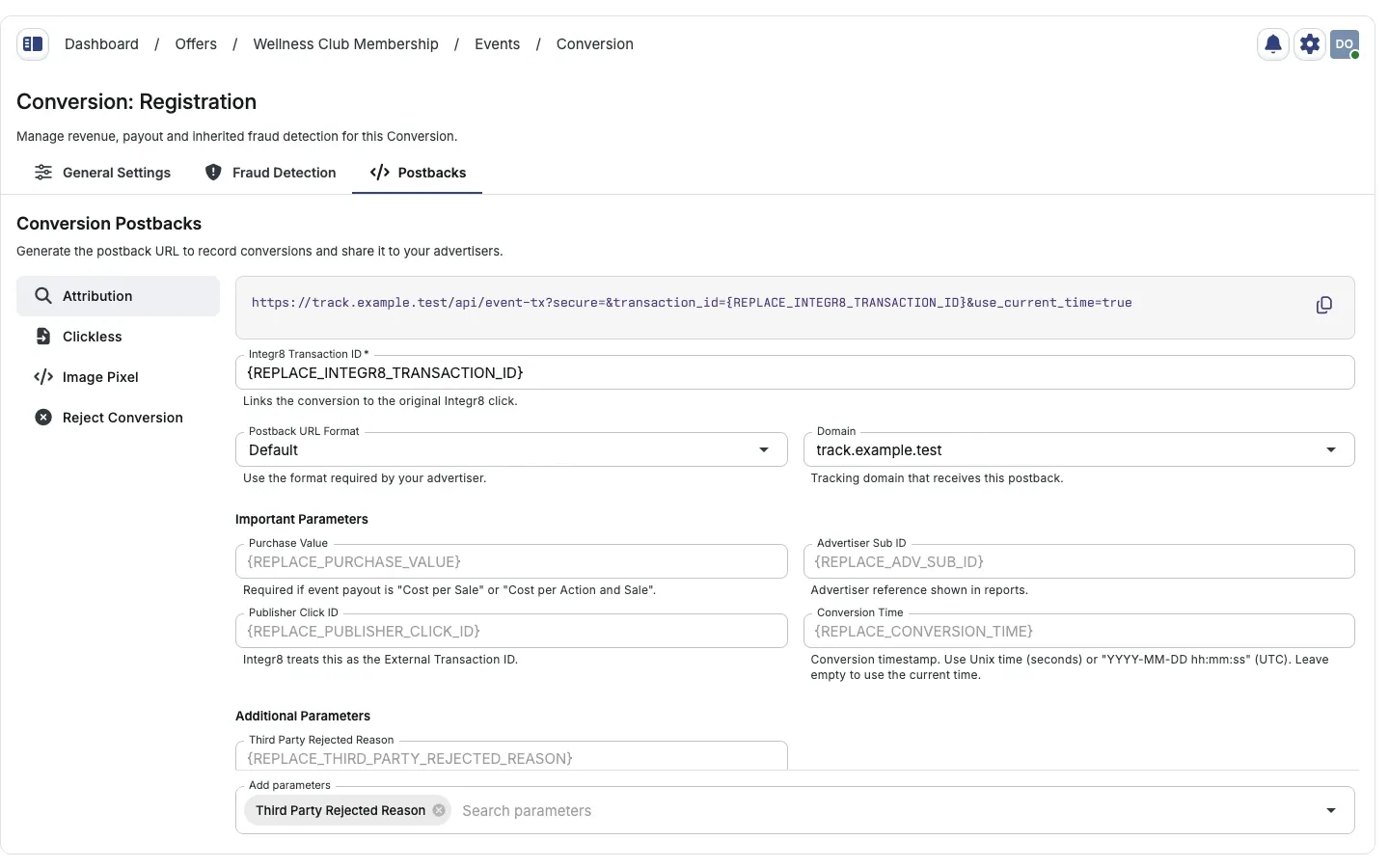
The output stays above the scrollable fields. Important Parameters contains commonly used fields; Add parameters adds optional fields under Additional Parameters. Review Postback URL Format and Domain for your advertiser’s integration.
Conversion Time accepts a timestamp or advertiser macro. Leave it empty to use the current time. On Event pages, the corresponding field is Event timestamp. A concrete timestamp uses Unix seconds or YYYY-MM-DD hh:mm:ss in UTC.
Third Party Rejected Reason supplies a rejection reason when the third-party filter is enabled. Adding this parameter does not enable that filter.
The URL format:
https://your.domain.com/?secure=YOUR_TOKEN&transaction_id=REPLACEReplace REPLACE with the placeholder your advertiser uses for the click ID they received.
Image pixel
Section titled “Image pixel”Use a 1x1 transparent image tag on the thank-you page when S2S is not available. Requires a custom tracking domain to be configured first.
<img src="https://track.yourdomain.com/event-tx?img=1" width="1" height="1" />Generate the exact HTML from Image Pixel in Conversion Postbacks, the offer’s Conversion Tracking accordion, or Global Tracking > Conversion Global Postback.
- In Global Tracking, select an Offer, then its Event. The pixel uses that offer’s primary tracking domain, not a separately selected domain.
- In an offer’s generator, the offer is fixed and its primary domain is used automatically. Configure it under Settings > Tracking Link.
- Event selection is required. The generated HTML cannot be copied while a required selection or usable tracking domain is missing.
- Publisher Click ID corresponds to
external_transaction_id.
Clickless postback
Section titled “Clickless postback”For conversions with no associated click, select Clickless. Global Tracking provides free-text Integr8 Offer ID and Integr8 Publisher ID inputs with {REPLACE_...} placeholders. In an offer’s generator, the offer is already fixed. Replace the placeholders with the advertiser’s macros or the correct IDs, then review the remaining fields and copy the URL.
Include the publisher and attribution data directly in the request:
| Parameter | Description |
|---|---|
publisher |
Publisher ID |
sub_id |
Sub-publisher ID |
session_time |
Timestamp of the session |
conversion_ip |
User IP at conversion |
user_agent |
User agent string |
revenue |
Revenue amount |
payout |
Publisher payout amount |
external_transaction_id |
Publisher’s click ID |
user_email |
Hashed or raw user email |
Common pitfalls
Section titled “Common pitfalls”- Forgetting to include
{transaction_id}in the offer redirect URL. Without it, the advertiser has nothing to pass back. - Hardcoding the
securetoken in publisher-shared URLs. The token belongs in postback URLs only. - Mixing global and offer-level postbacks for the same integration. Pick one path to avoid duplicate conversions.
Related
Section titled “Related”- Tracking links for the click side of the flow.
- Affiliate postback setup for forwarding conversions to publishers.
- Conversion rejection for marking previously-recorded conversions as rejected.