

Click Flooding
What it detects
Section titled “What it detects”Click flooding occurs when bots or compromised apps generate massive click volumes from a single source. The goal is to flood the attribution window so that a fraudulent click is the last recorded before a legitimate conversion, hijacking credit for organic installs.
How it works
Section titled “How it works”Integr8 monitors click velocity per source over a sliding time window. When the click volume from a single IP, sub ID, or publisher exceeds the configured threshold within the time window, subsequent clicks from that source are blocked in real time.
The filter also evaluates Click-To-Install Time (CTIT). Abnormally high volumes combined with long CTIT distributions are a strong signal of flooding rather than legitimate user behavior.
Configuration
Section titled “Configuration”Go to Offers > Fraud Detection Groups, open a saved group, select Filters, then open the Click Flooding card. Changes remain a draft until you use the page’s save action.
| Parameter | Default | Description |
|---|---|---|
max_duplicate_ip |
4 | Maximum clicks allowed from the same IP within the lookback window before blocking |
expires_in_seconds |
3,600 (1 h) | Rolling lookback window in seconds for counting duplicate IPs |
extra_expires_in_seconds_when_rejected |
43,200 (12 h) | How long a blocked IP stays blocked after the threshold is exceeded |
properties.has_offer |
false | Include the offer ID in the deduplication key |
properties.has_publisher |
true | Include the publisher ID in the deduplication key |
properties.has_sub_id |
false | Include the sub ID in the deduplication key |
properties.has_user_agent |
true | Include the user agent in the deduplication key |
These settings are managed by administrators. Contact your account admin to review or update the configuration.
Preview historical impact
Section titled “Preview historical impact”In the Click Flooding settings drawer, use Preview impact to estimate flagging against historical traffic without saving settings or changing live protection. The same preview is available for Impression Flooding where supported.
- Open the filter in a saved group’s catalog or in Global Filters. New, unsaved groups cannot use a global scope as a substitute.
- Choose Time range and Timeline bucket. The bucket is for display aggregation, not the filter’s lookback window.
- Review the Start and End values in the displayed timezone.
- Click Calculate Preview. Changes to dates, buckets, or settings do not calculate automatically; use Recalculate Preview after changing them.
- Review the scope, flagged-event estimate, timeline, accessible data table, and warnings. A saved-group preview is not a report of all integration traffic.
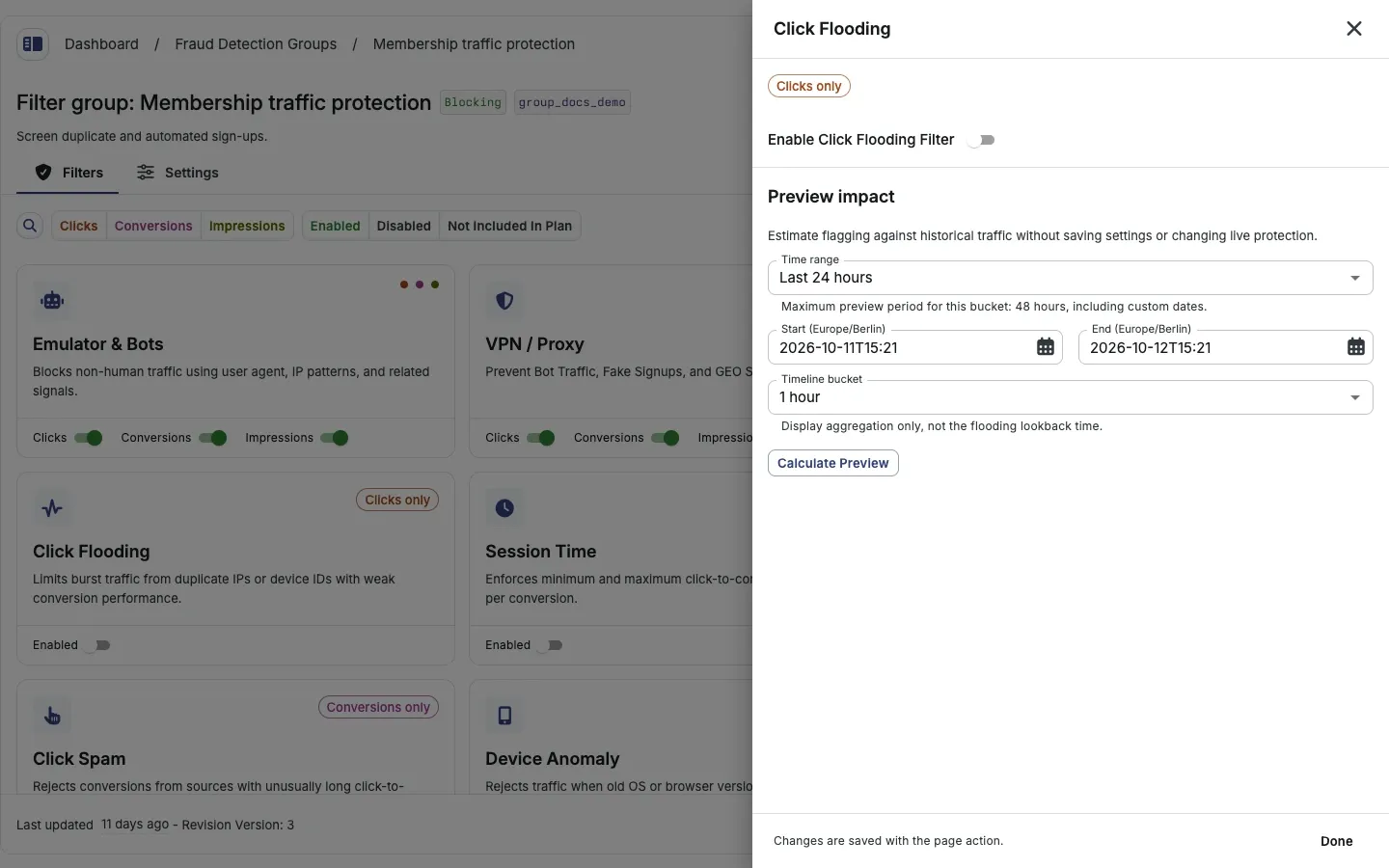
| Timeline bucket | Maximum period |
|---|---|
| 1 or 5 minutes | Last 60 minutes only; manual dates unavailable |
| 15 minutes | 24 hours |
| 30 minutes or 1 hour | 48 hours |
| 4 hours or 1 day | 7 days |
Accounts with advanced-preview access can choose Saved / default settings or Current draft settings and compare thresholds. Previewing a draft does not save it. Historical results are estimates; read the returned warnings before changing live settings.
What happens when triggered
Section titled “What happens when triggered”When the click threshold is exceeded:
- Block mode: Integr8 rejects the click with HTTP 403. No attribution is recorded.
- Flag mode: The click is recorded with a
fraud_reason: click_floodingtag. Conversions from flagged clicks are still tracked but marked as suspect.
You can review blocked clicks in Reports > Click Reports using the fraud_reason filter.
Related filters
Section titled “Related filters”- Click Spam, detects background click injection from malicious apps
- Sub-ID Validity Check, validates sub IDs used to segment click volume